How to Delete and Reinstall an App
Uninstalling the Badger app from an Android phone or tablet
1. Go to the Play Store. Click on the icon with three horizontal lines.

2. Select My apps & games.

3. Go to the Installed tab, and click on the Badger Maps app's name. (Note: Do not click Open because this will launch the app.)

4. Tap on Uninstall.

Reinstalling the Badger app to an Android phone or tablet
1. Go to the Play Store. Type Badger Maps in the search field. It would usually be the top result.

2. Click on Install.

3. You'll see the Open button once the app is installed.

Uninstalling the Badger app from an iPhone or iPad
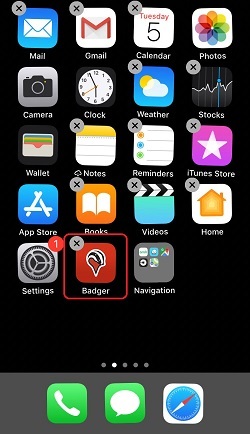
1. Press and hold the app you wish to delete until all of the icons on the screen start to wiggle.
2. Click on the X symbol that you’ll see on the top-left corner of the app icon. (Note: Apple apps that cannot be deleted are the ones that don't have an X symbol.)
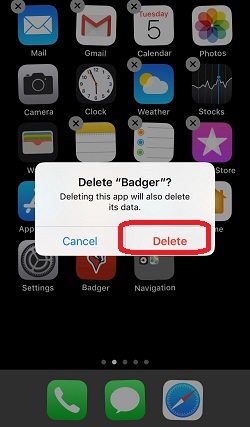
3. Tap Delete to completely remove the app.
Recovering/Reinstalling the Badger App to an iPhone or iPad
1. Launch the App Store on your iPhone or iPad.
2. Go to Search, type Badger Maps in the search field, and click on the cloud icon to reinstall.

3. You'll see the Open button once the app is completely downloaded.