How to Add an Email Account (iPhone)
As you know, we recommend sending us a Log Report whenever you encounter issues while using our iPhone app. Also, it should come from your registered Badger email address so we can match the logs with your account.
What if your registered email isn’t the same as your phone’s default email address? No worries, this article will teach you how you can add your registered email address to your iPhone. Read below to learn how.
1. Open up Settings, and look for Mail.
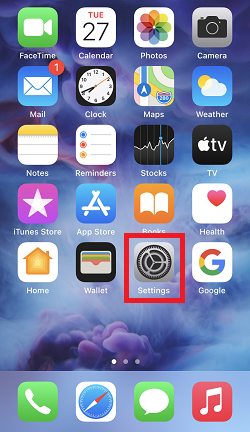
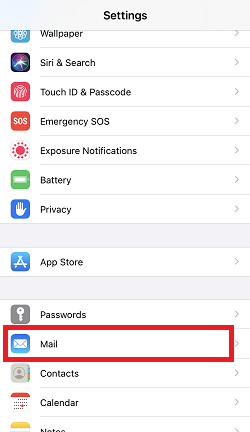
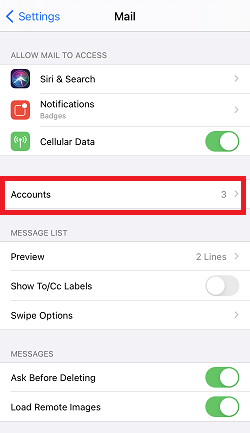
2. Then tap Accounts, and click Add Account.

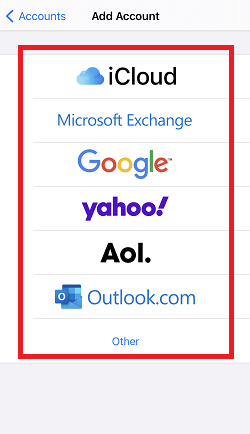
3. Choose from the options, then sign in to your registered email.
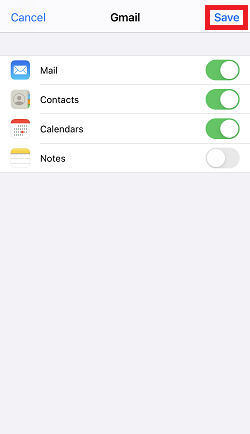
4. Tap Save after signing in, and you’re all set.
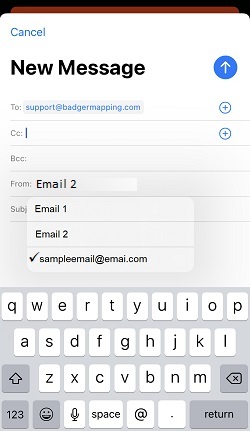
5. This is how the screen looks if you tap the From field of Badger’s Contact Support page after adding your registered email.
That’s it. Enjoy the rest of your day!


