How to Add Appointments to Calendar (Android)
Badger Maps has a calendar feature which allows you to easily create and keep track of your appointments. Keep on reading to see how it works on our Android app.
1. There are two ways on how you can add an appointment/s.
a. On the Map screen - click on any pin that you want to add to your calendar, then tap the Add To icon beside the account name, and select Add to Calendar.

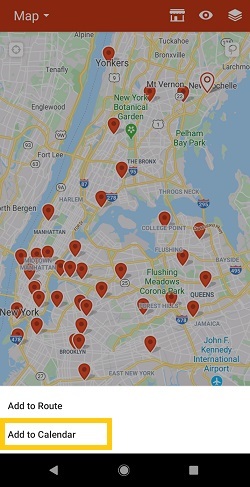
b. On the Accounts screen - choose the account that you want to set an appointment with. Once you’re done selecting, the app will take you to the Details page. Hit the Add To button, and choose Add to Calendar.


2. Enter the appointment details, and tap Save when you’re done.


That’s it! The appointment is now saved on your calendar.


