How to Change the Distance on Route Stats (iPhone)
If you didn’t know yet, Badger Maps has route stats that tells you the total travel and meeting times as well as the distance your route has covered. The distance shown on the app takes after what language and region your phone has on its Settings.
If you need to see it in a different unit of measurement (ex. miles to kilometers), then you’d have to configure it on your iPhone. Continue reading to find out how it’s done.
1. In this example, the distance is in miles.

2. To change it to kilometers, open up your Settings app.

3. Look for General, then Language & Region.


4. Tap iPhone Language, select English (UK), and tap Change to English (UK).
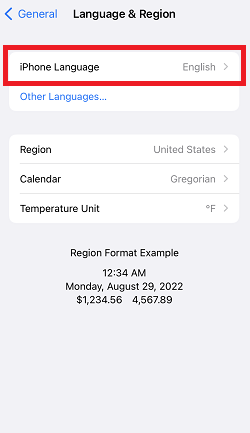

5. After that, go to Region, choose United Kingdom, and tap Change to United Kingdom.


6. Go back to Badger Maps, and you’ll see that the distance is now in kilometers.

Pretty easy right? Try it now and happy selling.


