How to Delete an Account in Badger Maps (iPad)
Deleting an account/s that you no longer need is quite easy even if you’re on the road. Continue reading to find out how it’s done using the iPad app.
1.A. First, you’d need to choose which account to delete. You can either tap the account pin on the Map screen, and then click the account name found at the bottom right of the screen.

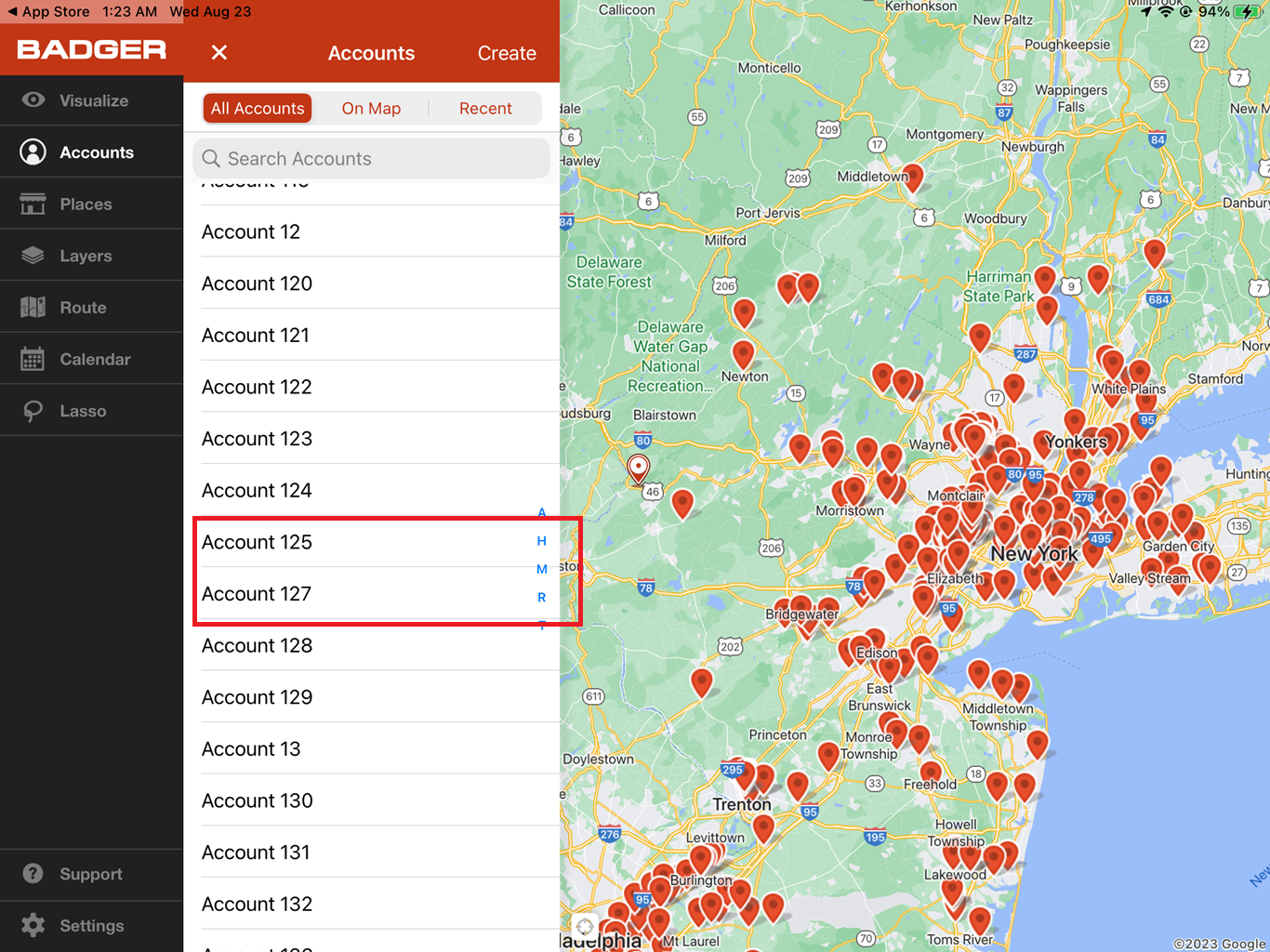
1.B. Or, open up Accounts and select which account to remove from the list.

2. After choosing the account, the Account Details page will be opened up. Simply tap the Delete Account button found at the bottom.

3. Then, confirm your choice by clicking Delete on the pop-up box.

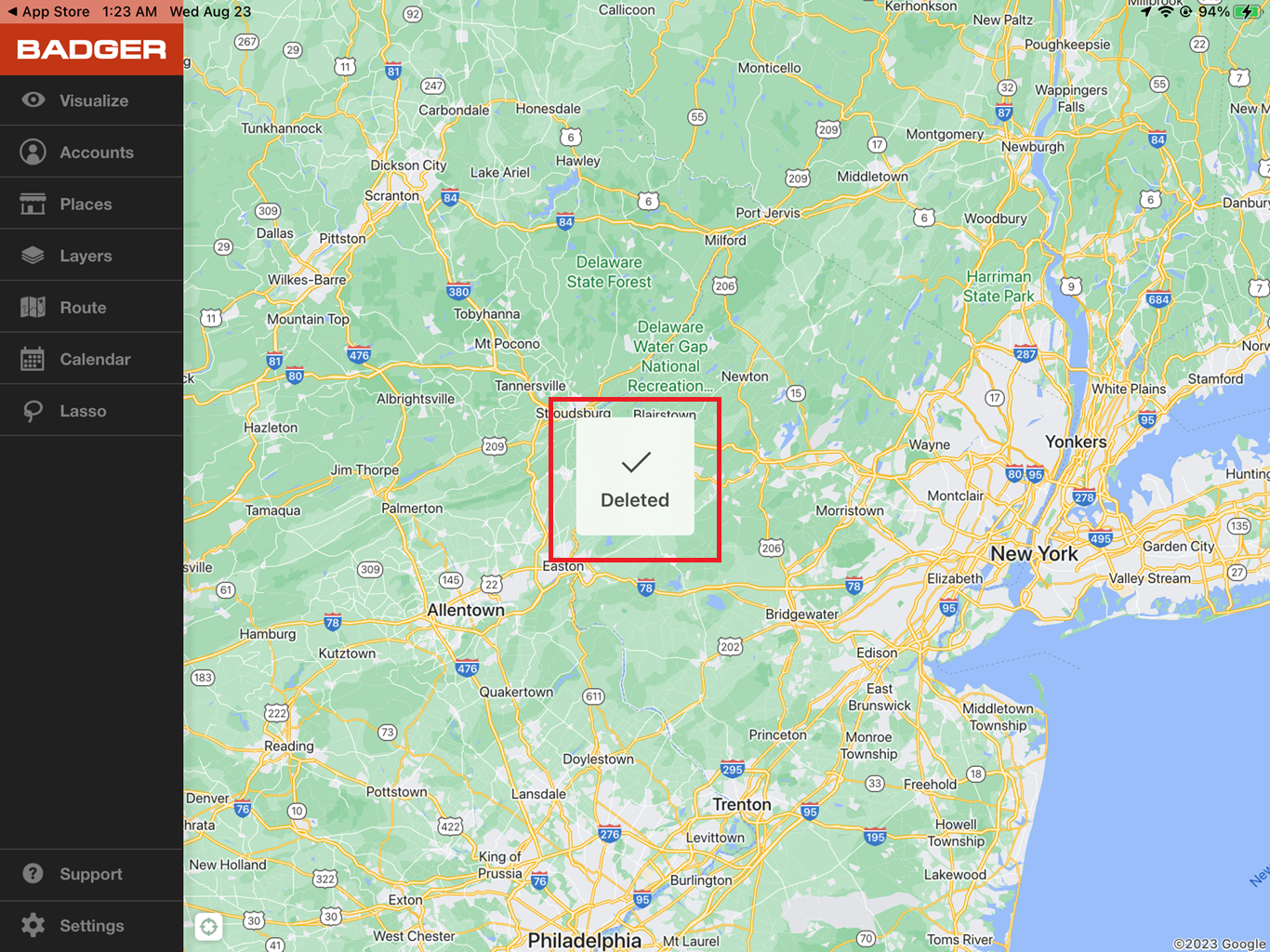
4. A Delete message will appear to confirm that the account has already been removed.