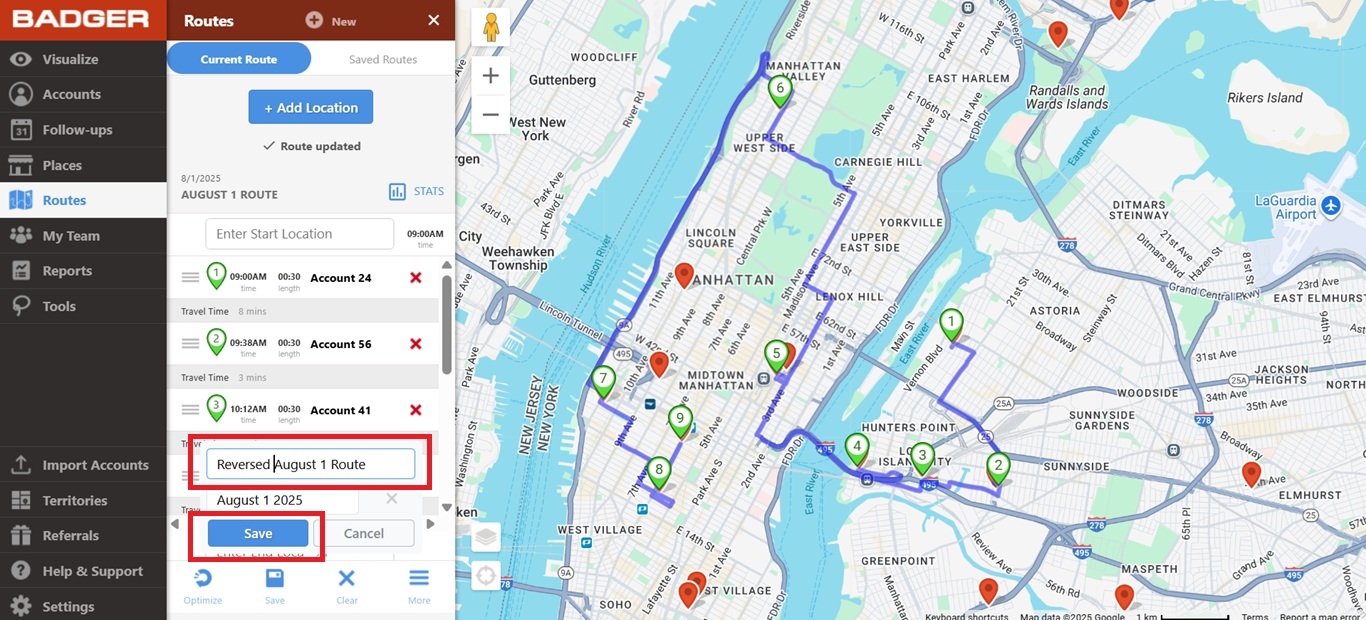
How to Reverse a Route (Web App)
Badger Maps has just added a new feature that allows you to put the stops on your route in reverse order. Read below to find out how.
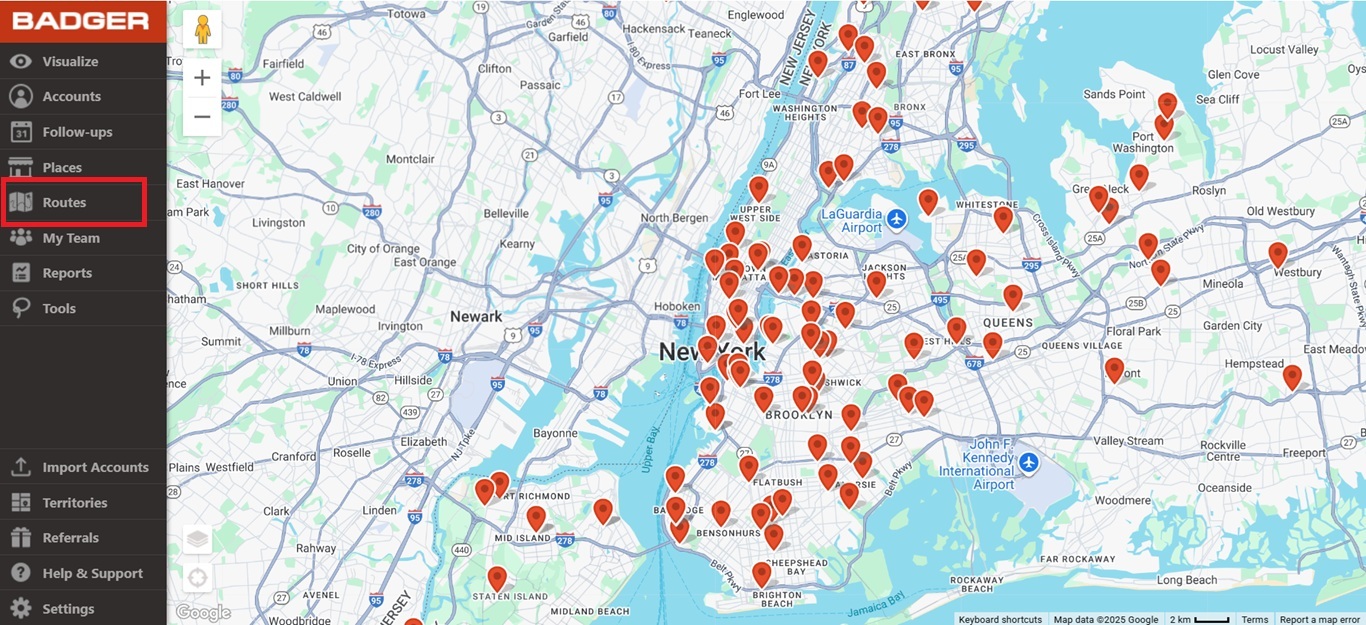
1. The first thing that you need to do is go to the Routes tab on the Badger Maps web app.
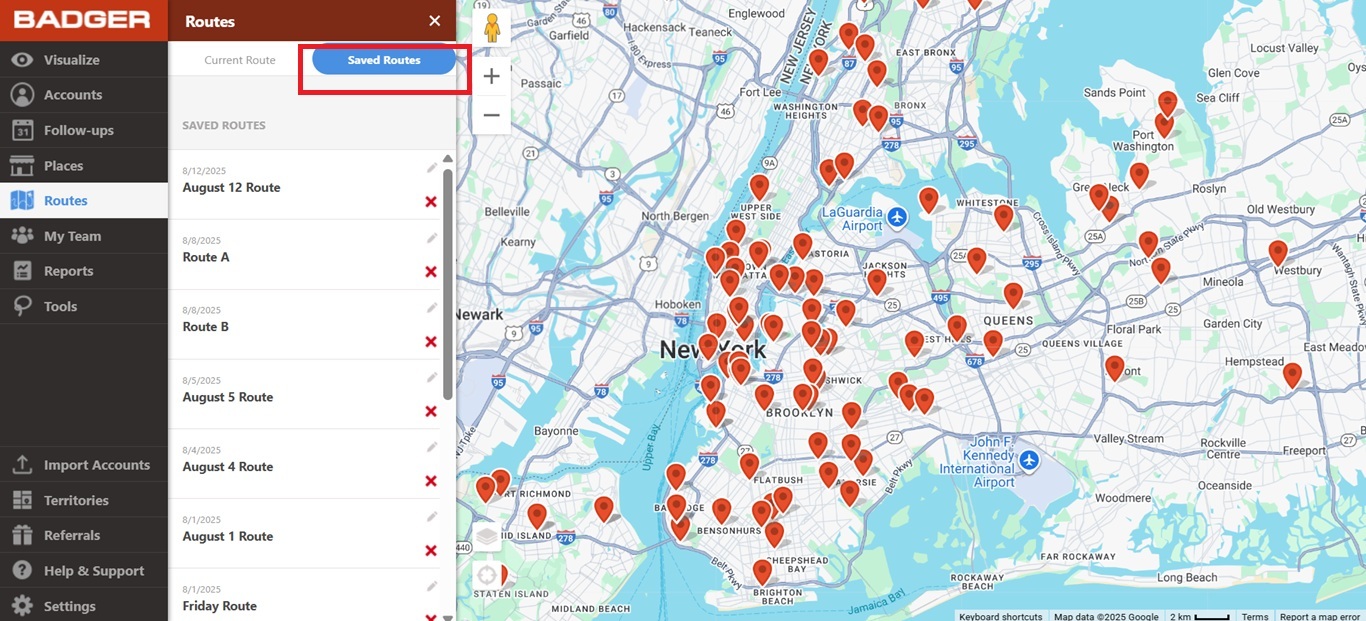
2. Then choose Saved Routes to pull up the list of your routes.
3. Once you have the list, click on the route that you wish to rearrange to load it on the app.
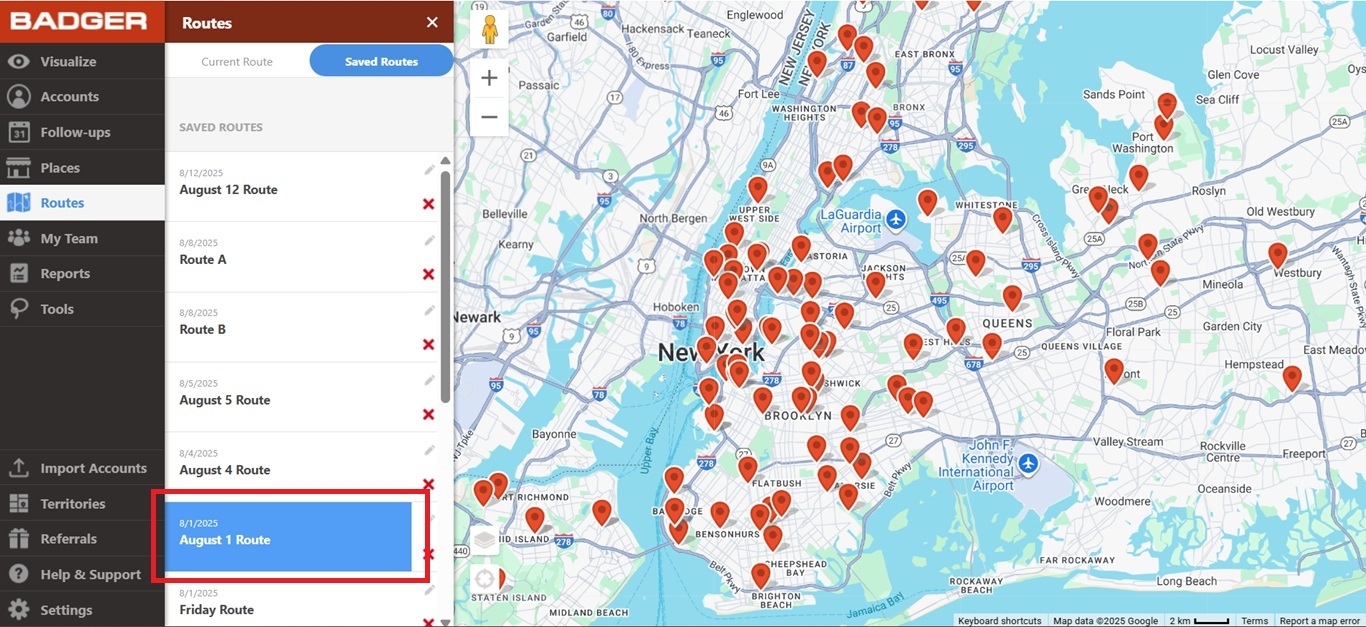
4. You’ll see the route loaded under the Current Routes tab.
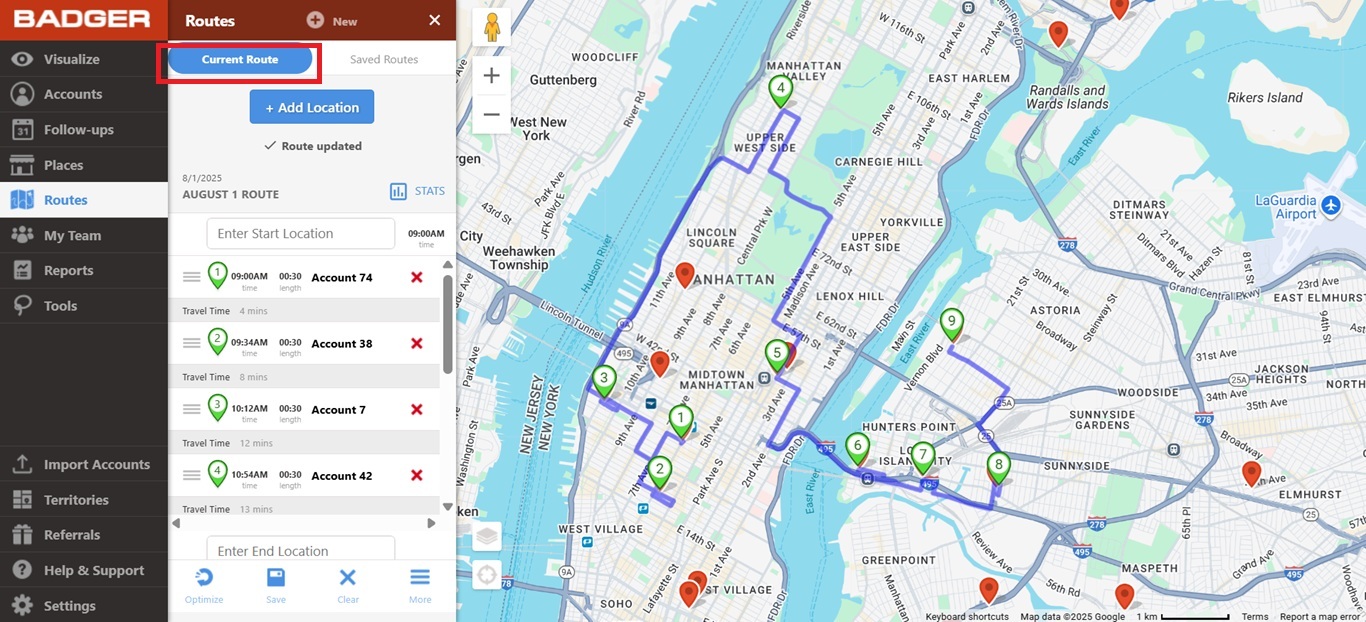
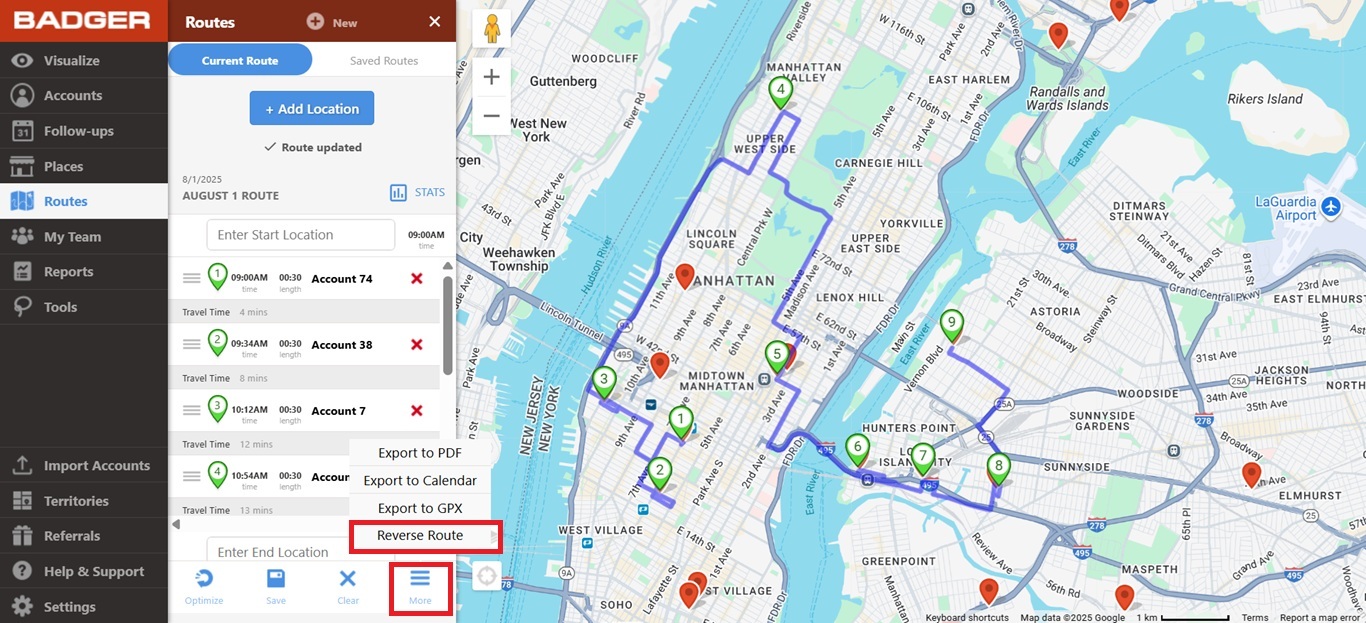
5. Click More found at the bottom right corner of the Routes panel, and choose Reverse Route from the options on the pop-up window.
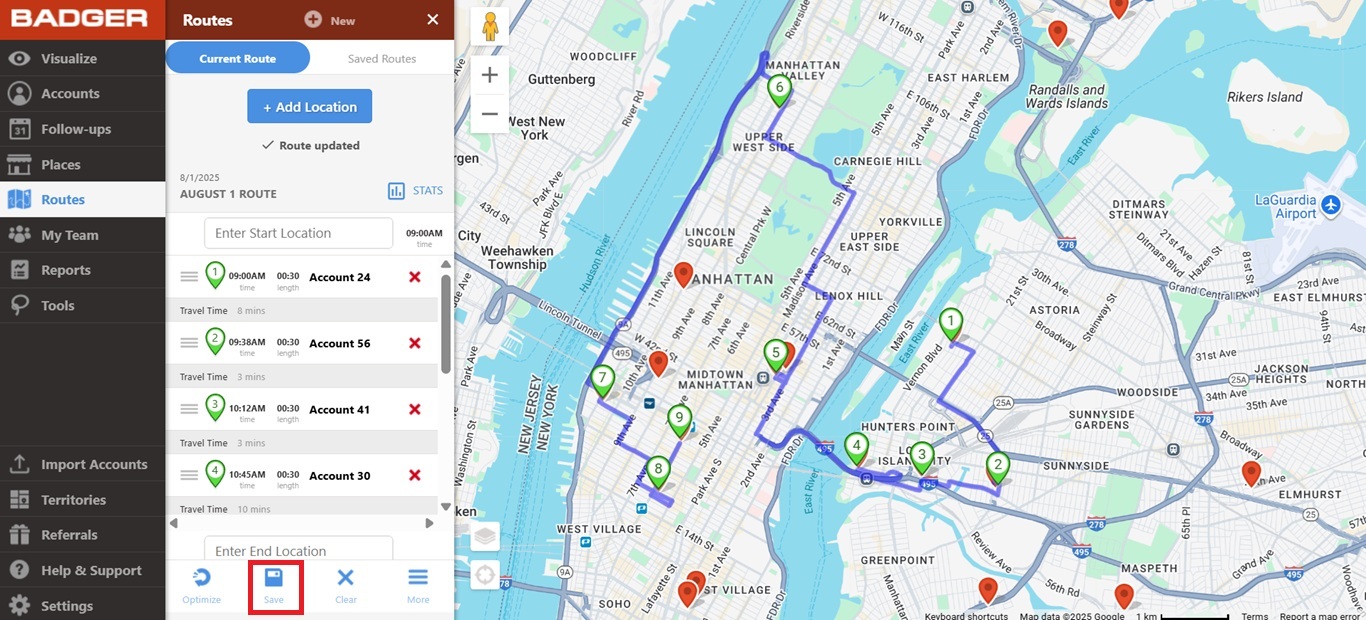
6. The stops are now rearranged in reverse order. Click the Save icon to save the changes.
7. Then click the blue Save button to save the changes you made on your route.
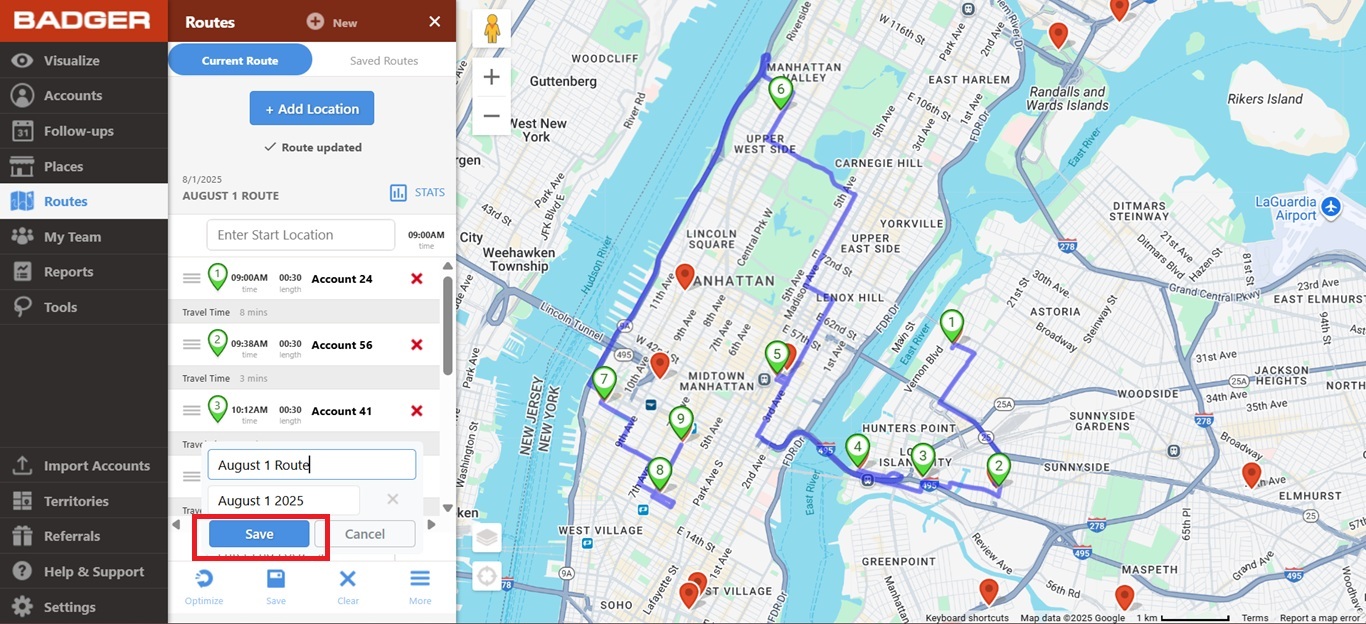
Or assign a new route name before clicking Save if you need to save an entirely different route.