How to Exit the Tutorial Mode (Web App)
So you’ve used Badger’s sample data when you tested the app, and you’re now ready to use your own. All you need to do is to exit the Tutorial Mode, and it’s quite easy. Continue reading to find out how it’s done. Just note that exiting the tutorial mode will also delete the routes you created while you’re in it, and will not be retrieved.
Through Accounts Menu
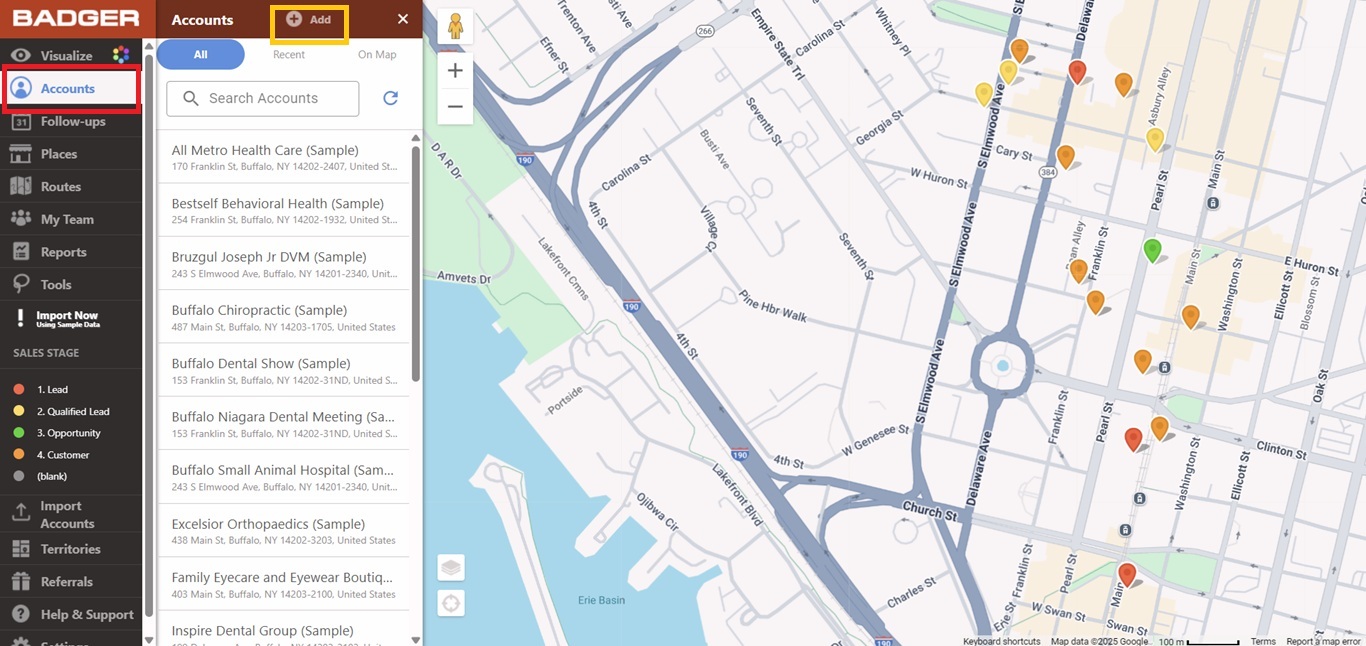
1. First, go to Accounts, and click Add.
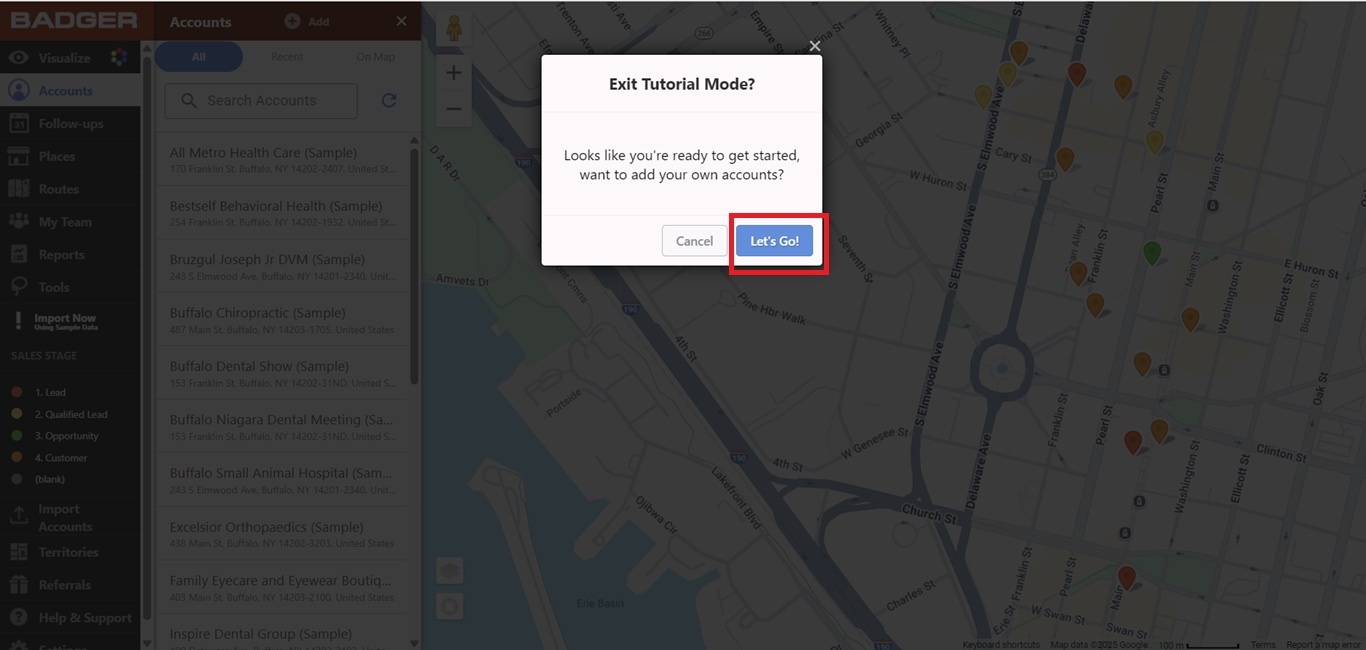
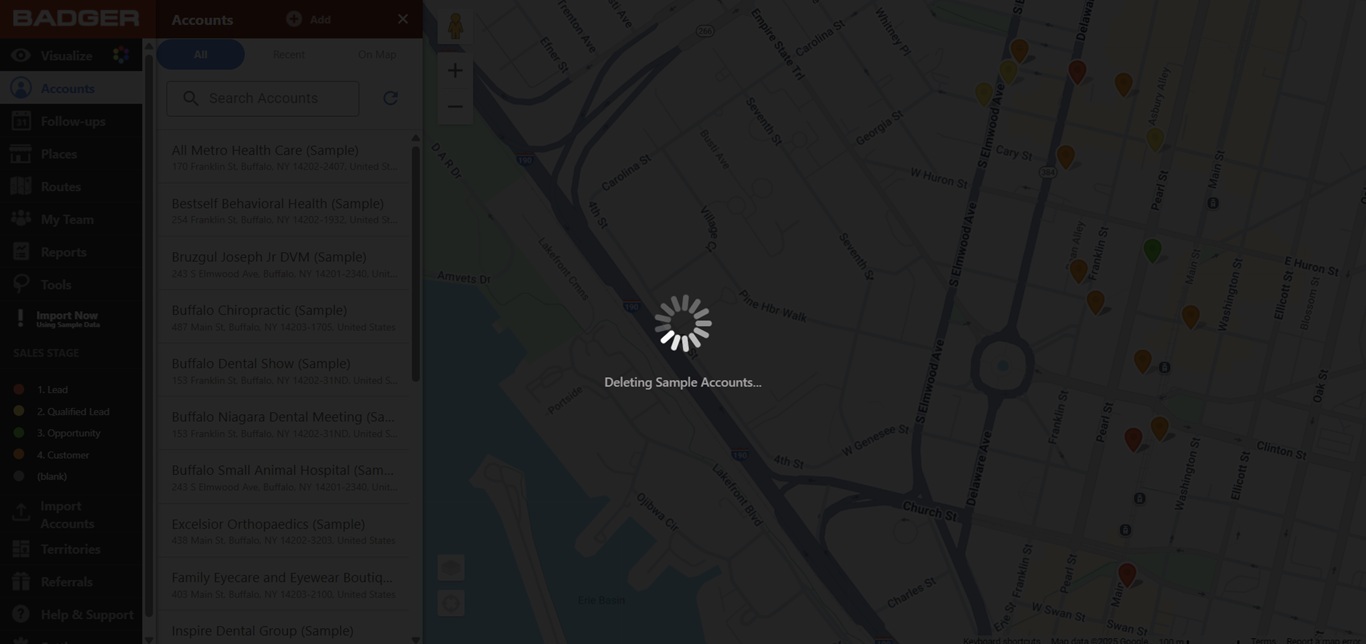
2. An Exit Tutorial Mode? box will pop up. Click on Let’s Go!, and you’re ready to upload your spreadsheet, or manually create accounts.
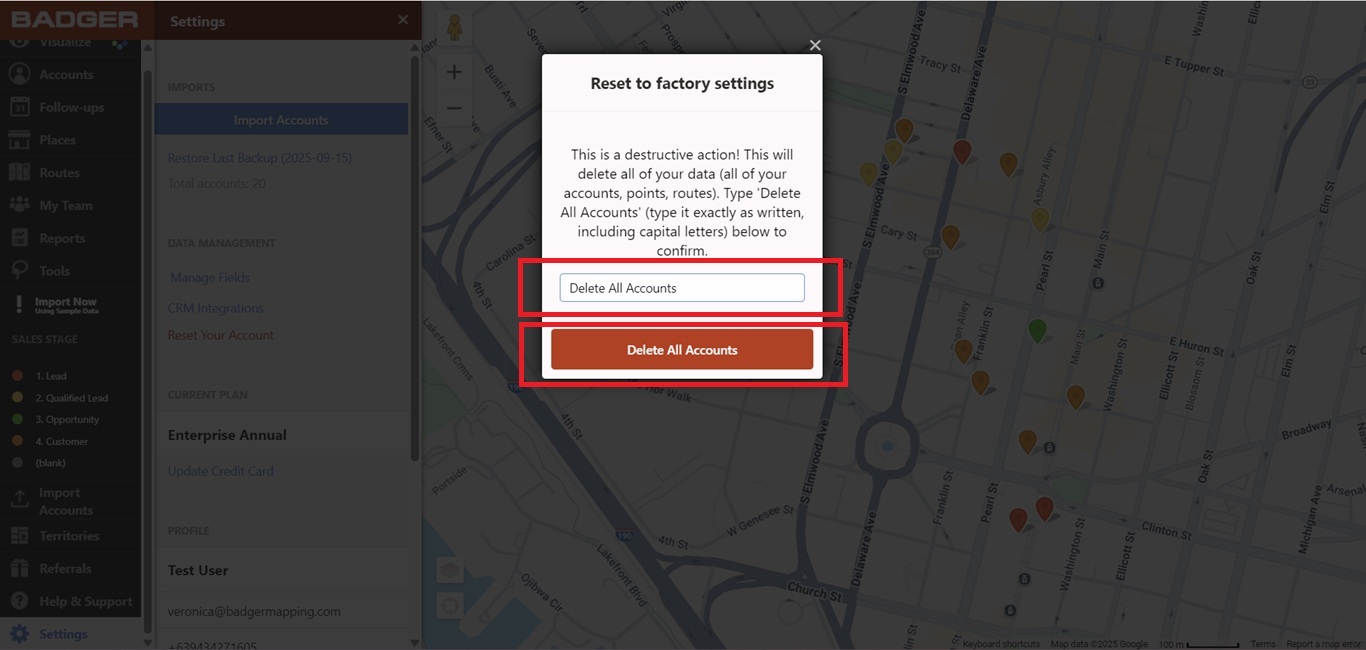
Through Account Reset
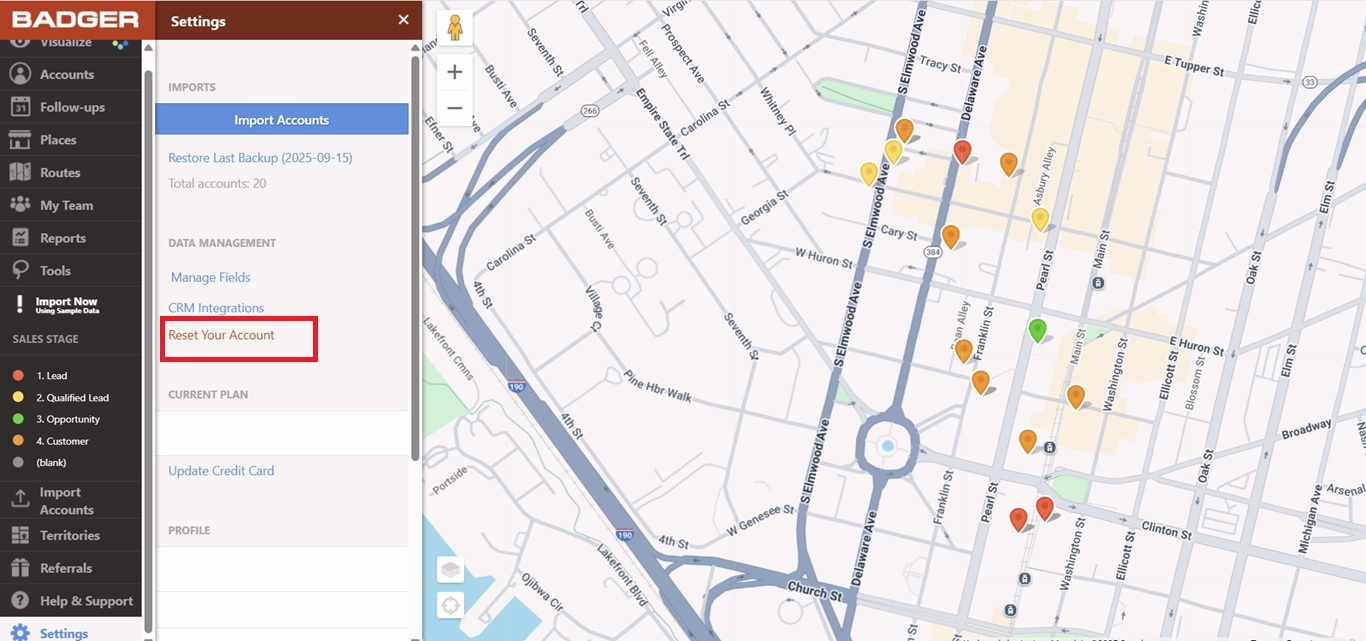
1. You can also do an Account Reset to remove the sample accounts.
Through Data Import
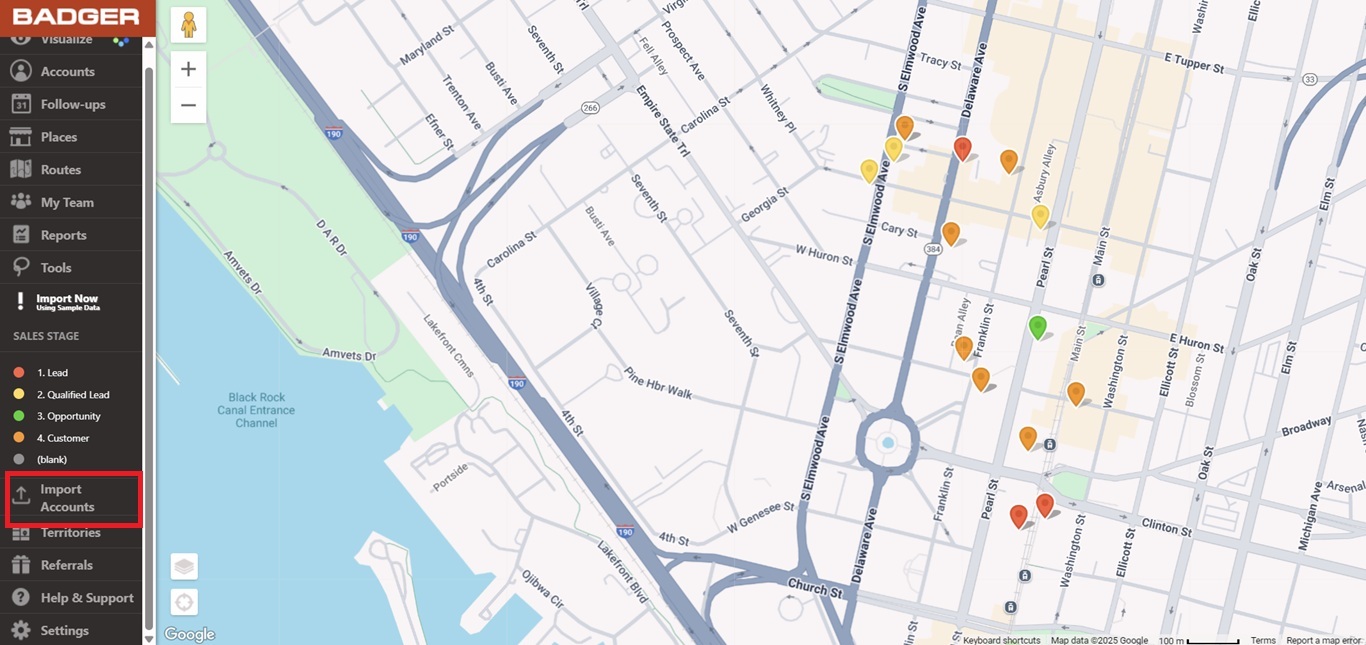
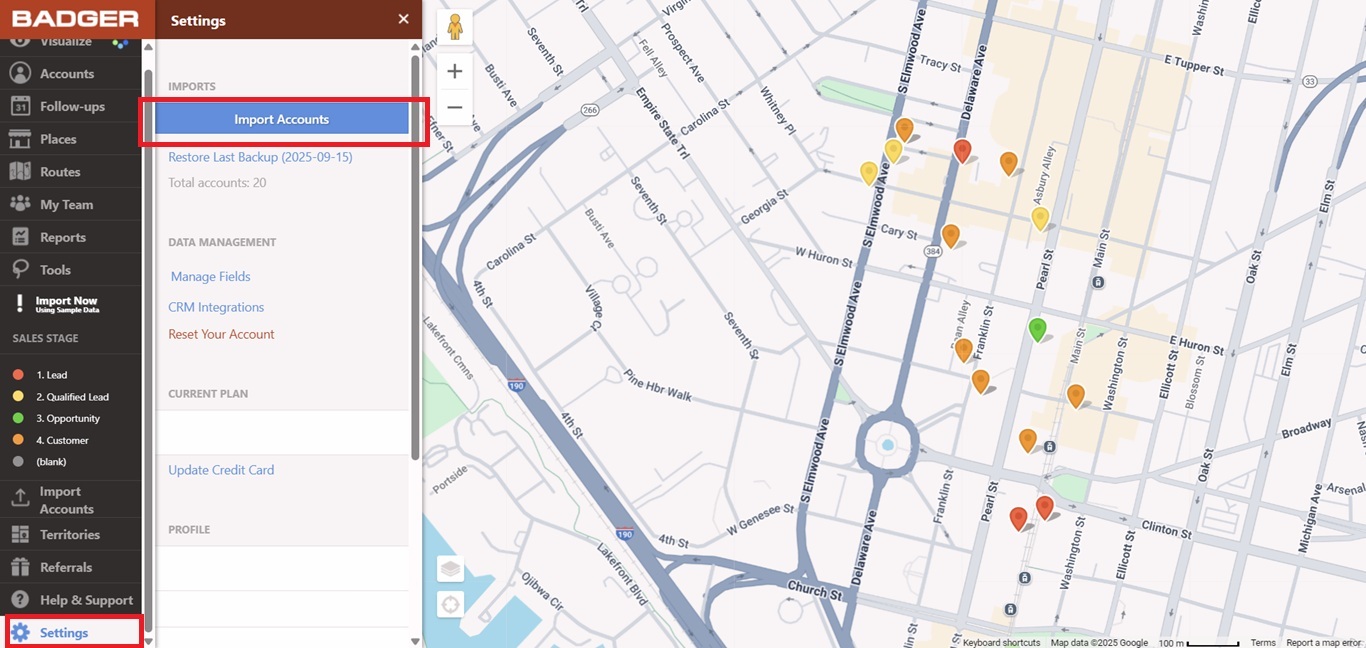
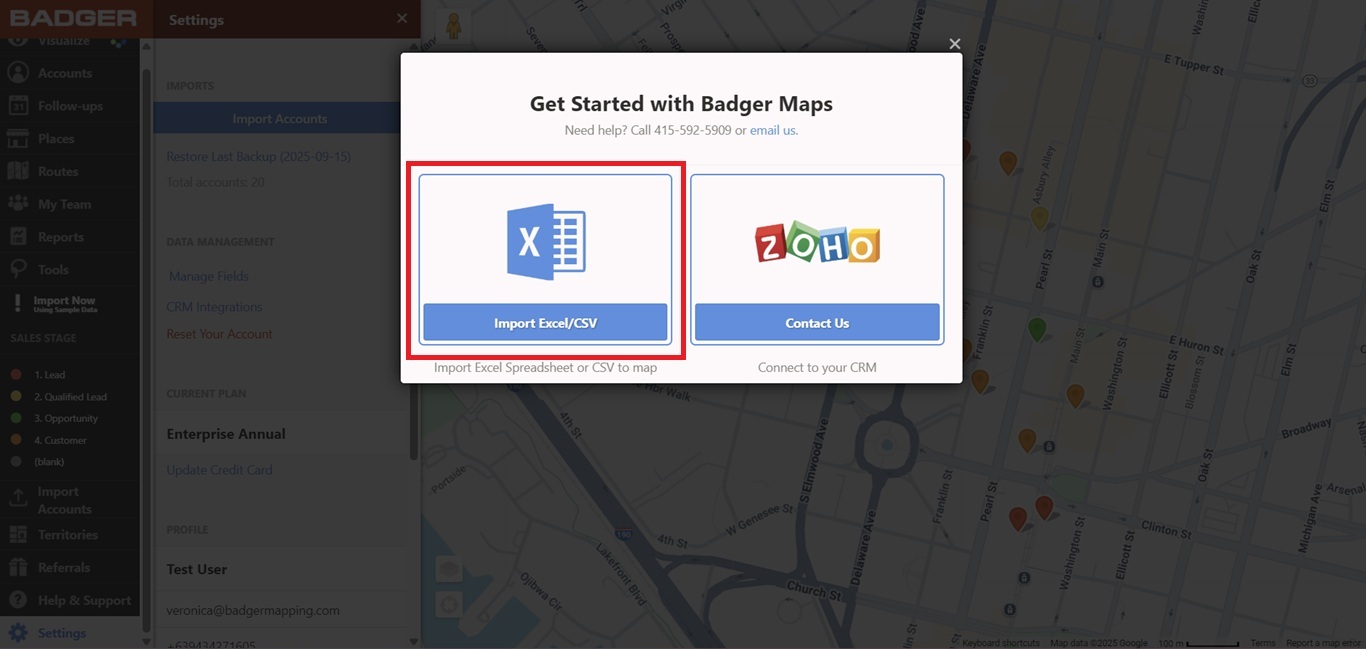
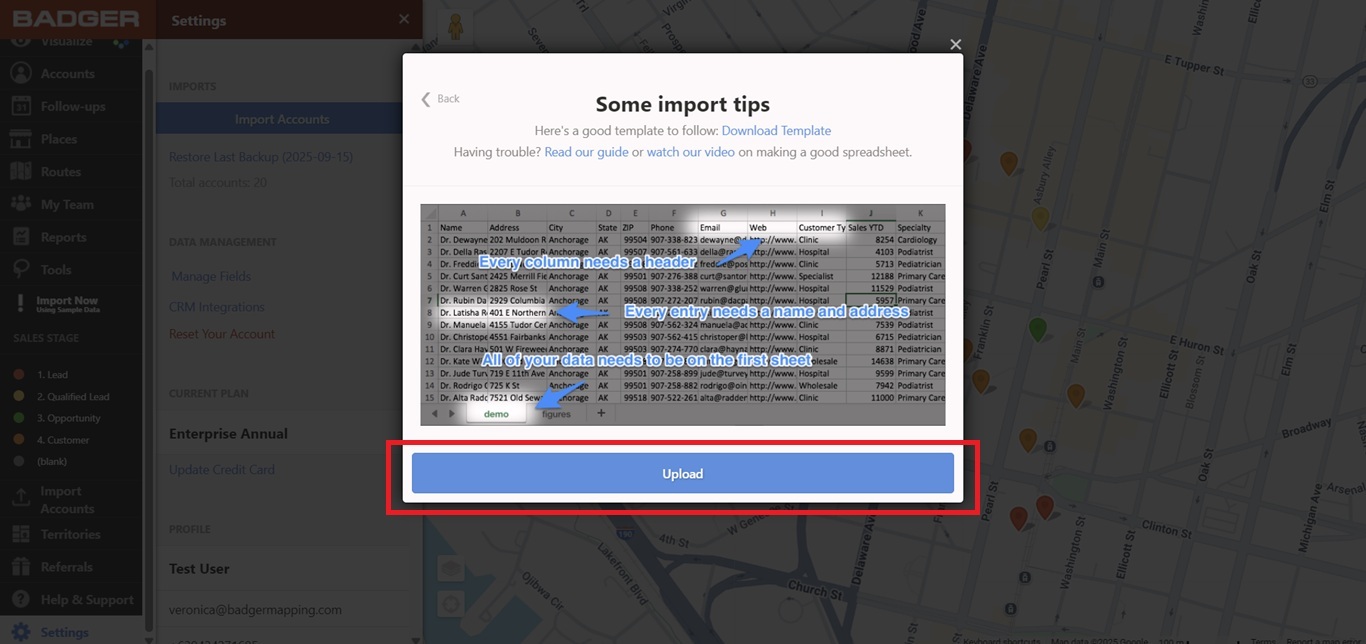
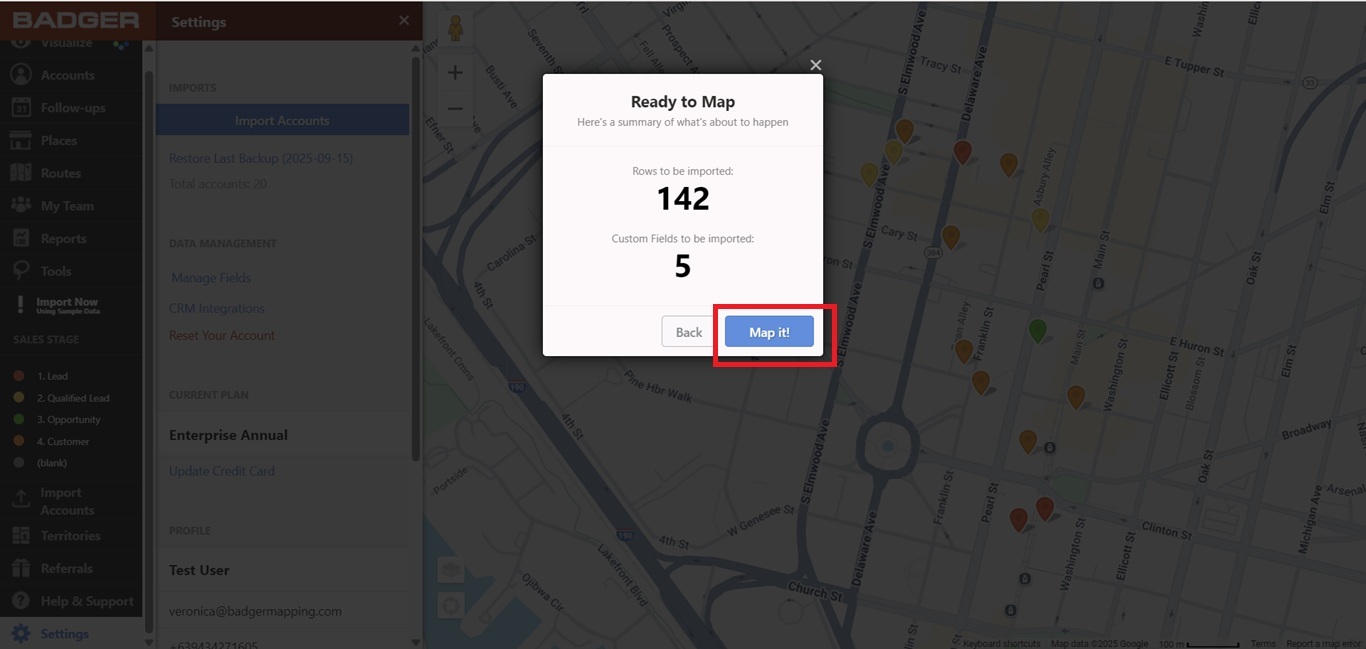
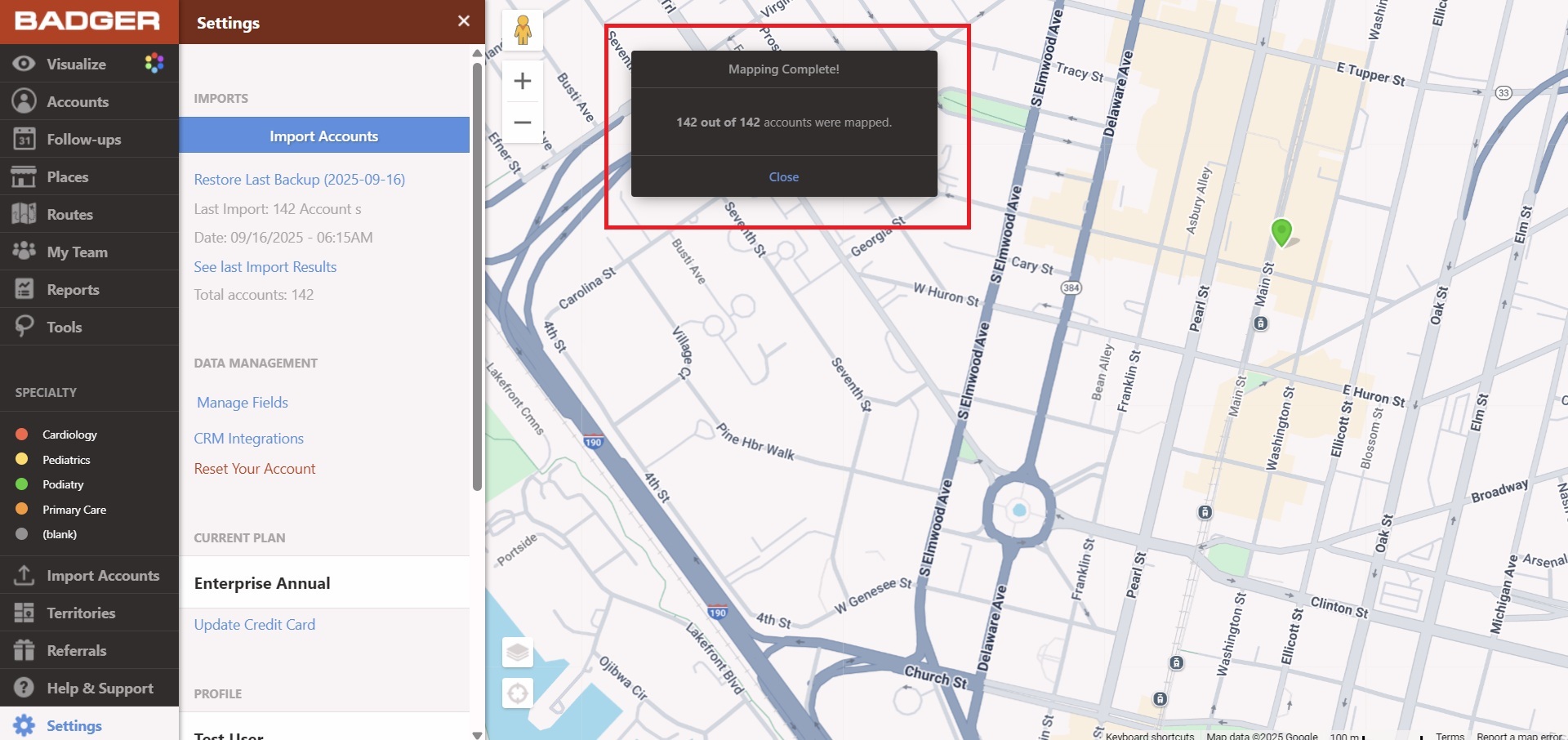
2. Or, directly importing your spreadsheet through the Import Accounts menu or the Settings button.
That’s all. It’s pretty simple right? Happy selling!


