How to Route Filtered Accounts (Web App)
As you know, creating routes in Badger always starts with selecting the stops. You can either choose them individually, or in bulk using our Lasso tool. What if you want to create a route based on a specific filter? It's actually pretty simple. Continue reading to find out how it's done.
In this example, let’s say you’d like to route all your Primary Care accounts.
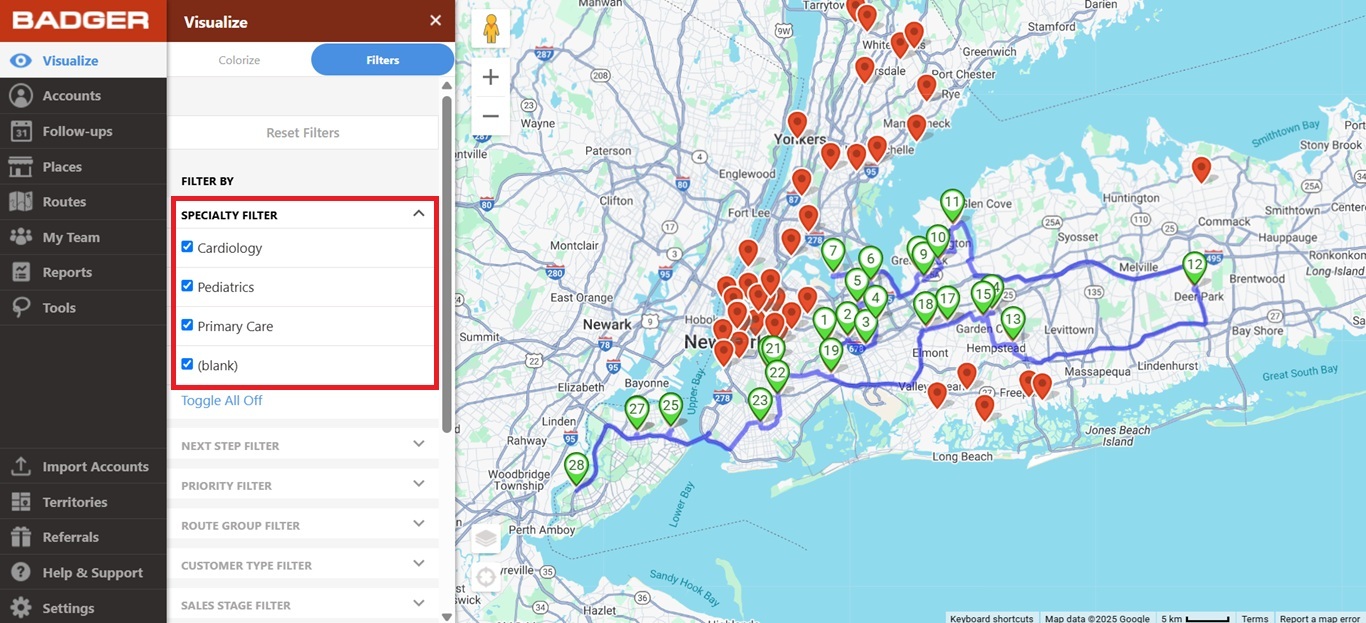
1. Filter the accounts so only your Primary Care accounts are the only ones visible on the map.
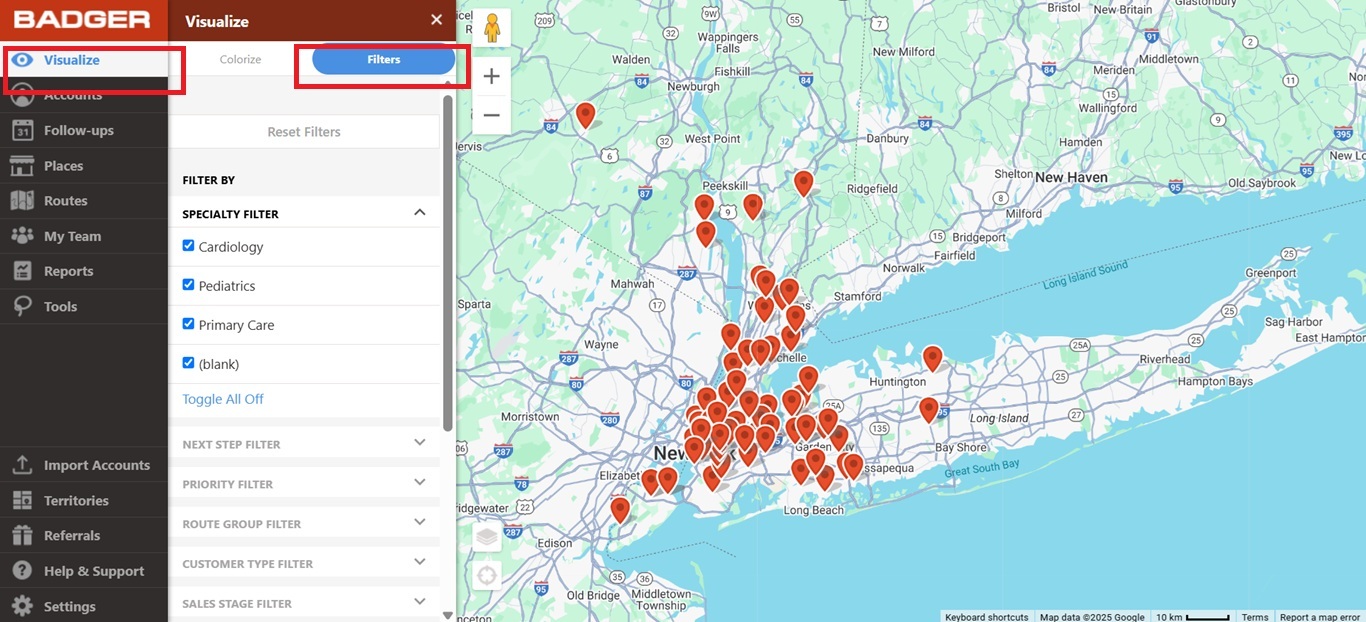
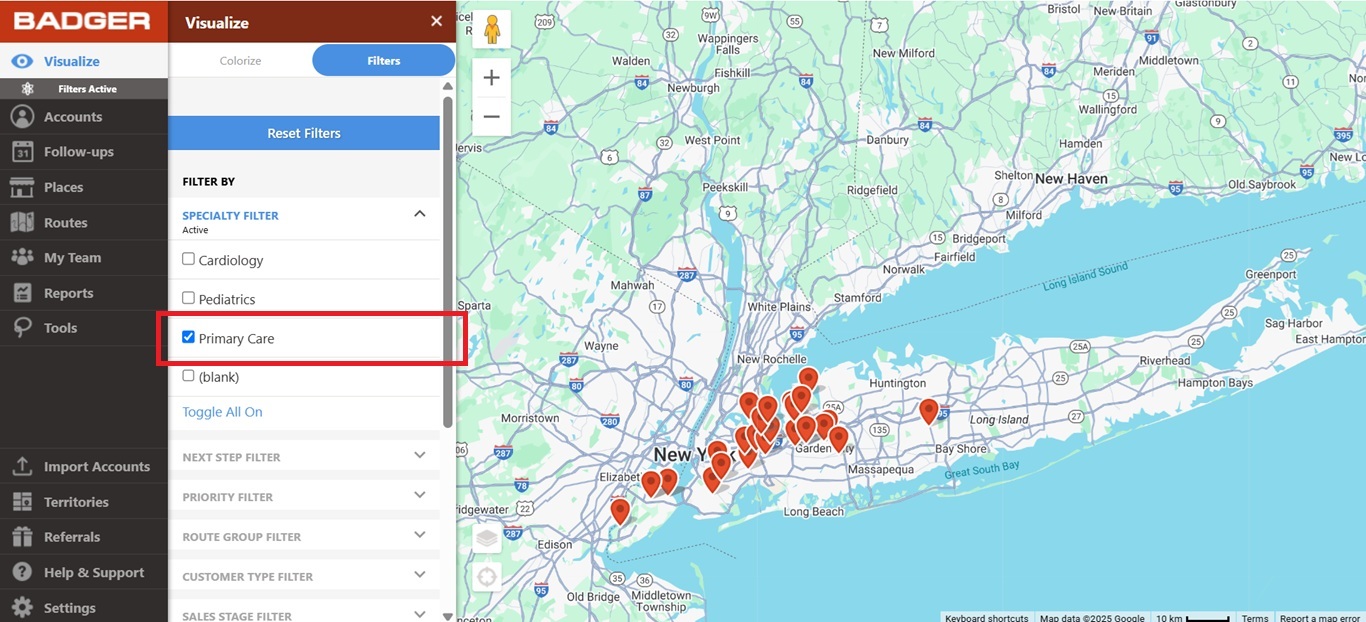
2. Once filtered, use the Lasso tool to draw around these pins, and create a route.
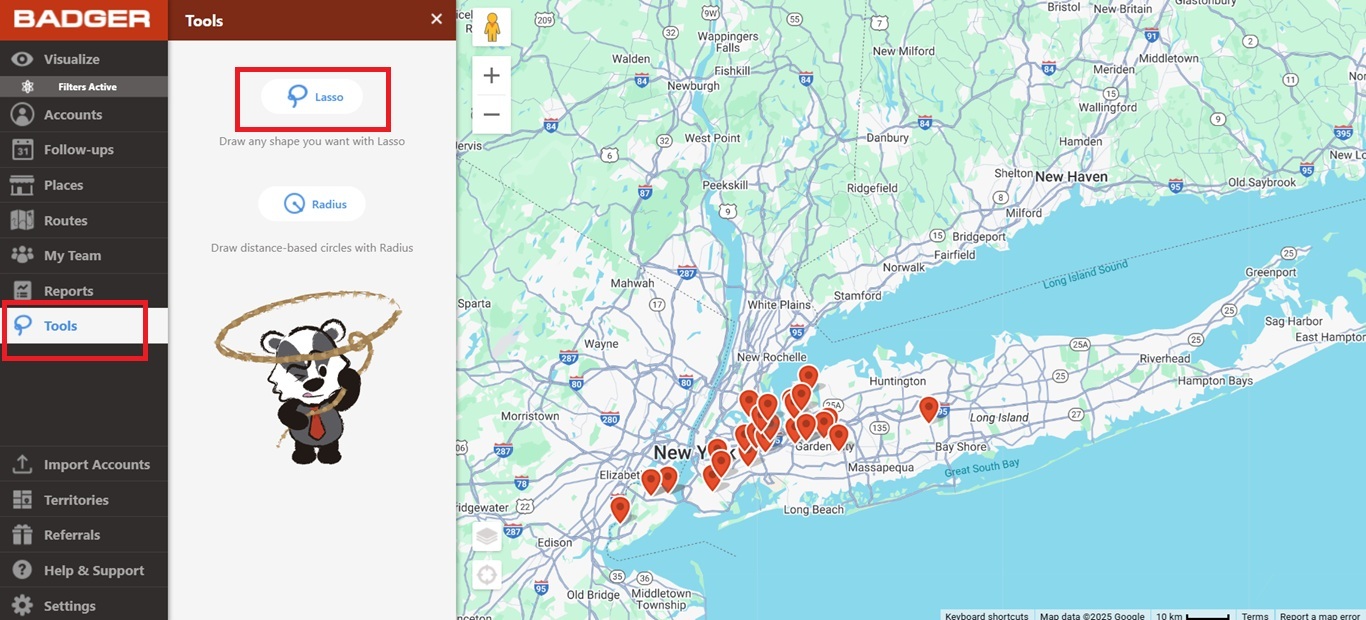
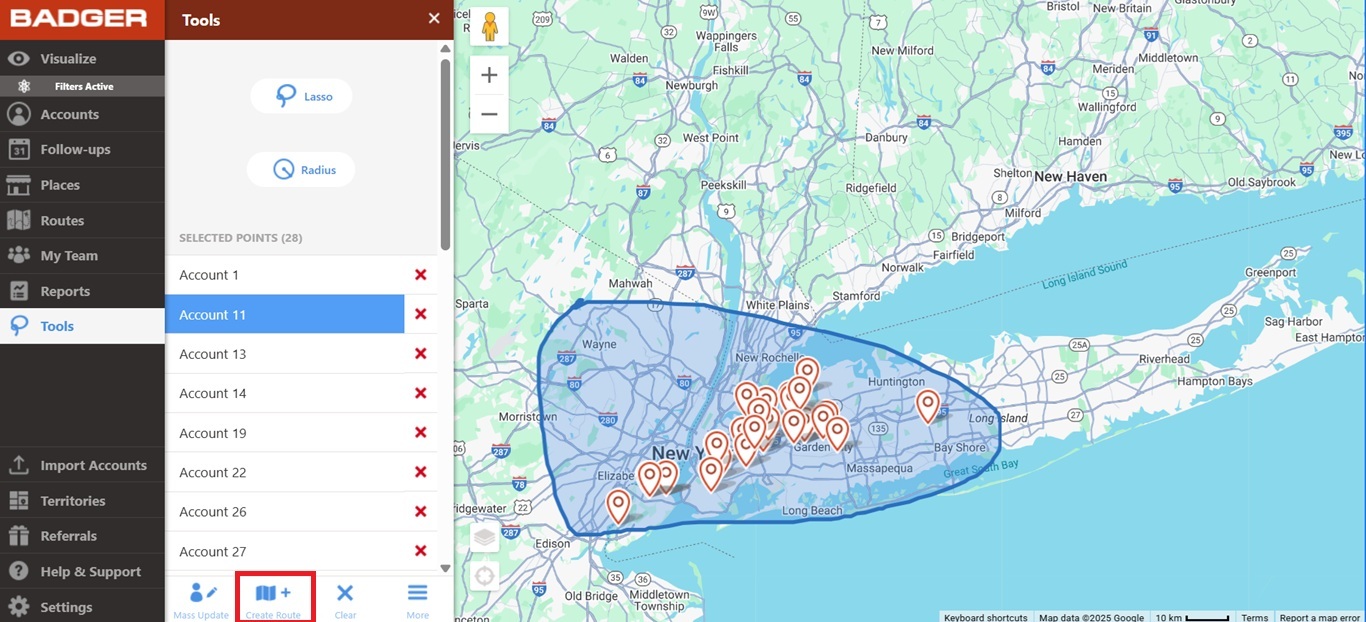
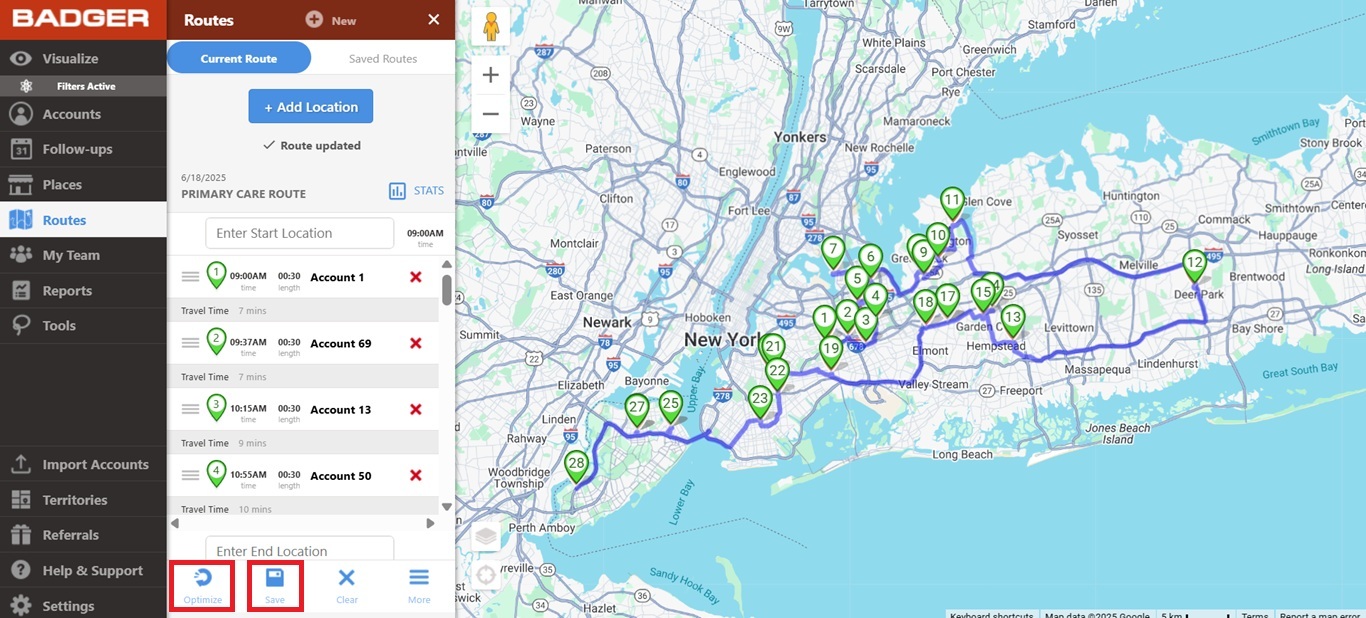
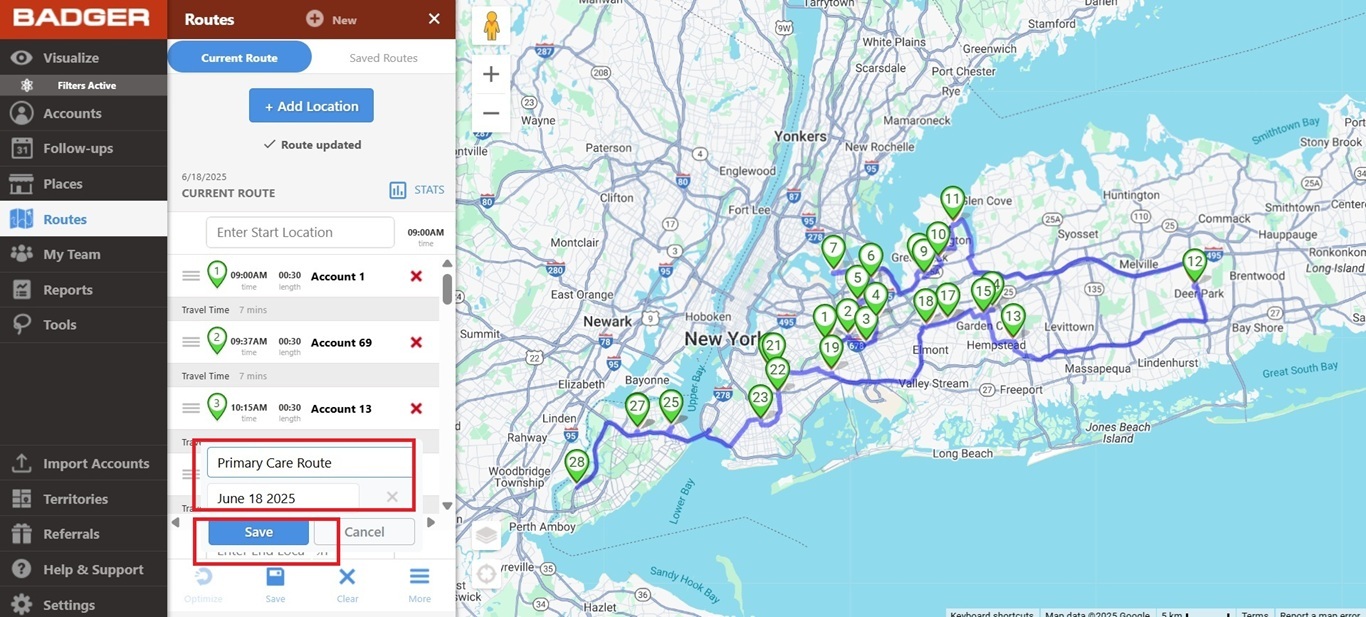
3. And that’s it! You now have a specific route for your Primary Care accounts.
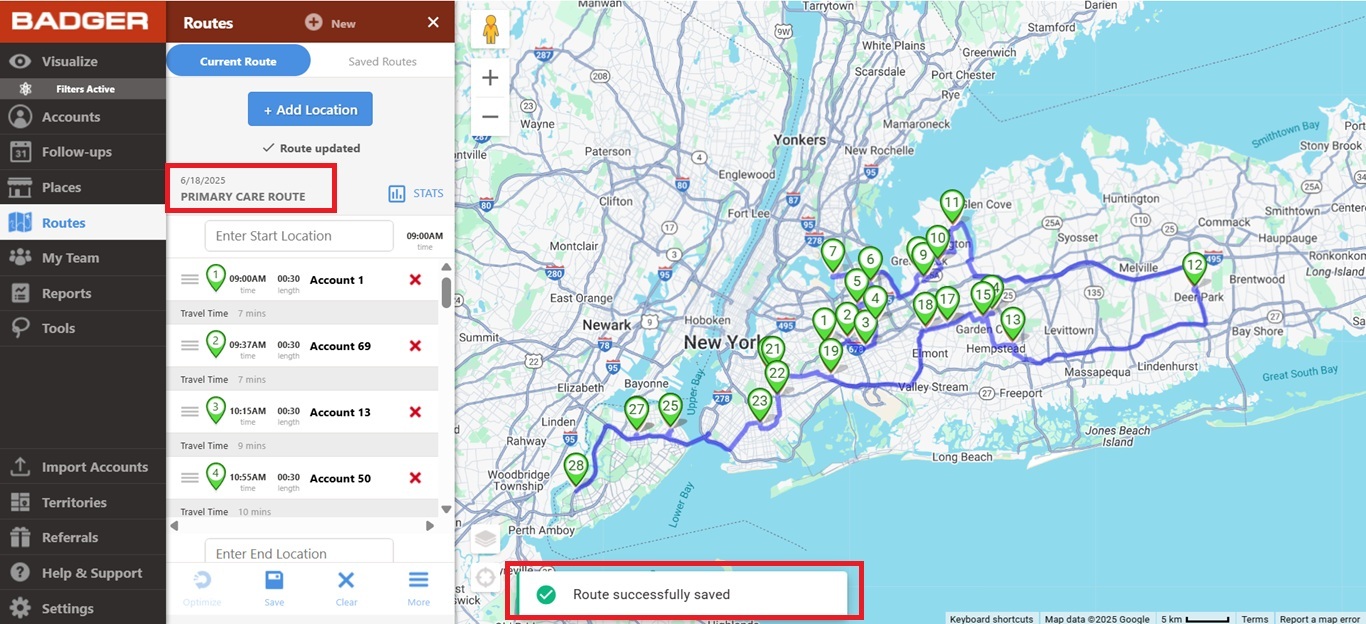
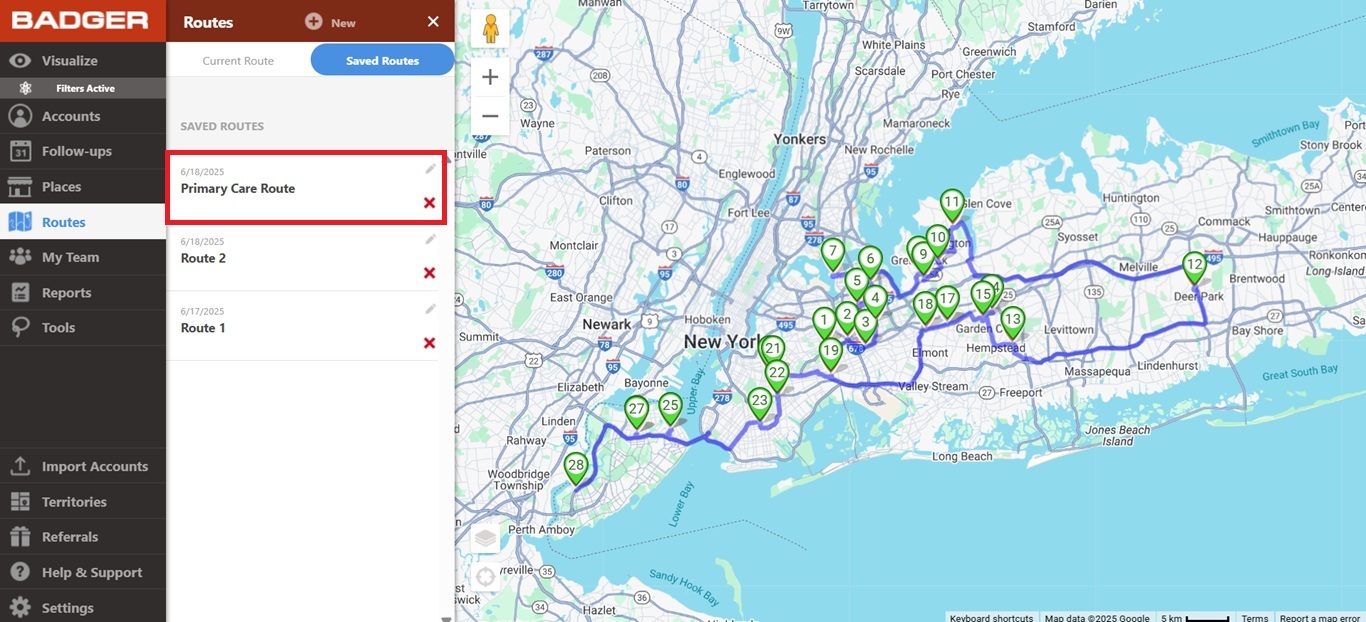
Note: If you’d like to add more accounts to the route, all you need to do is to toggle everything back on, then add the nearby accounts individually.
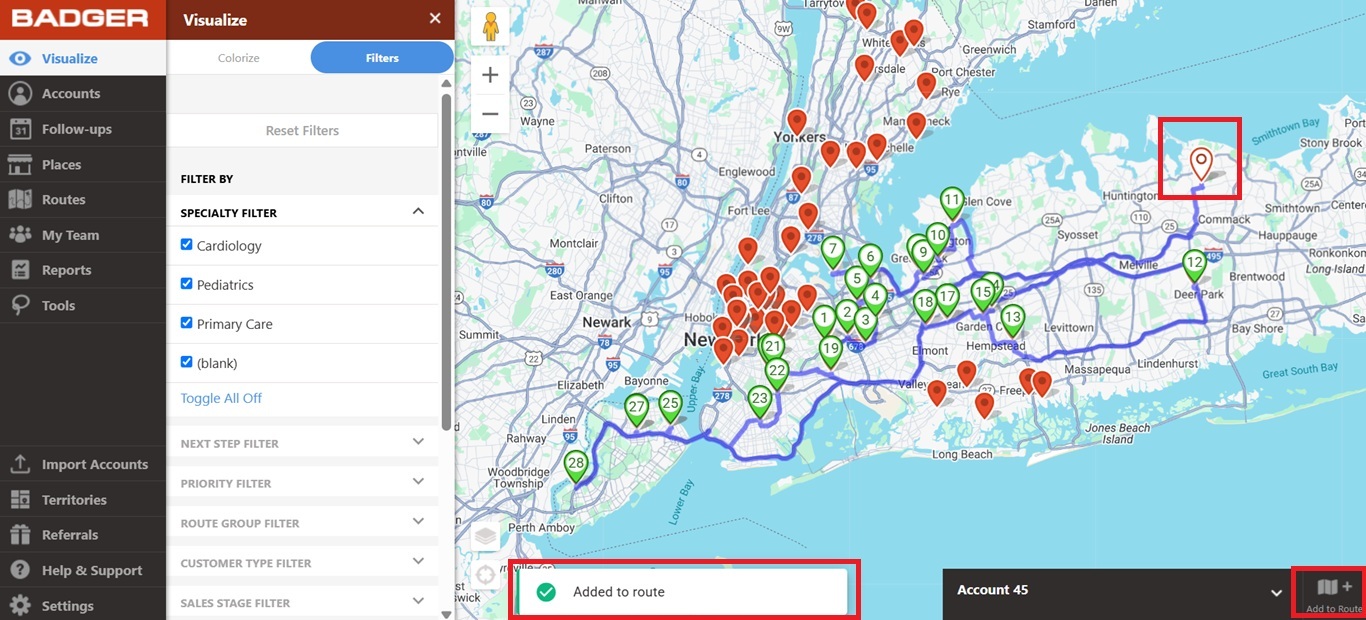
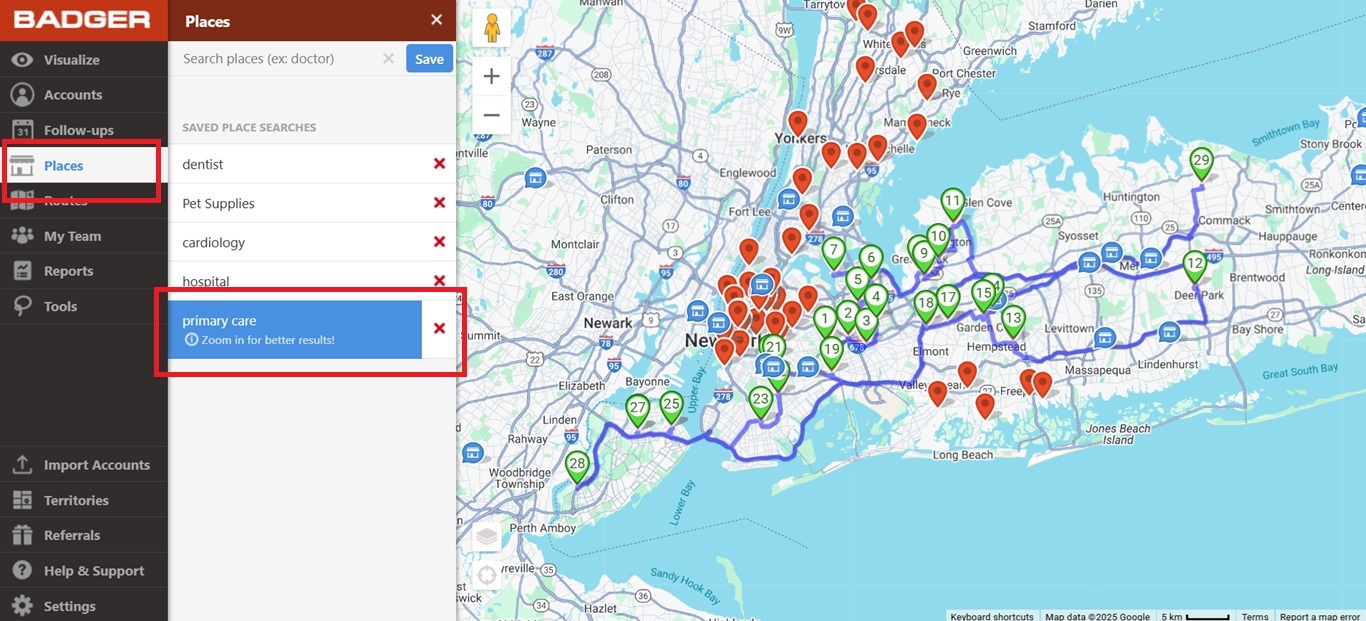
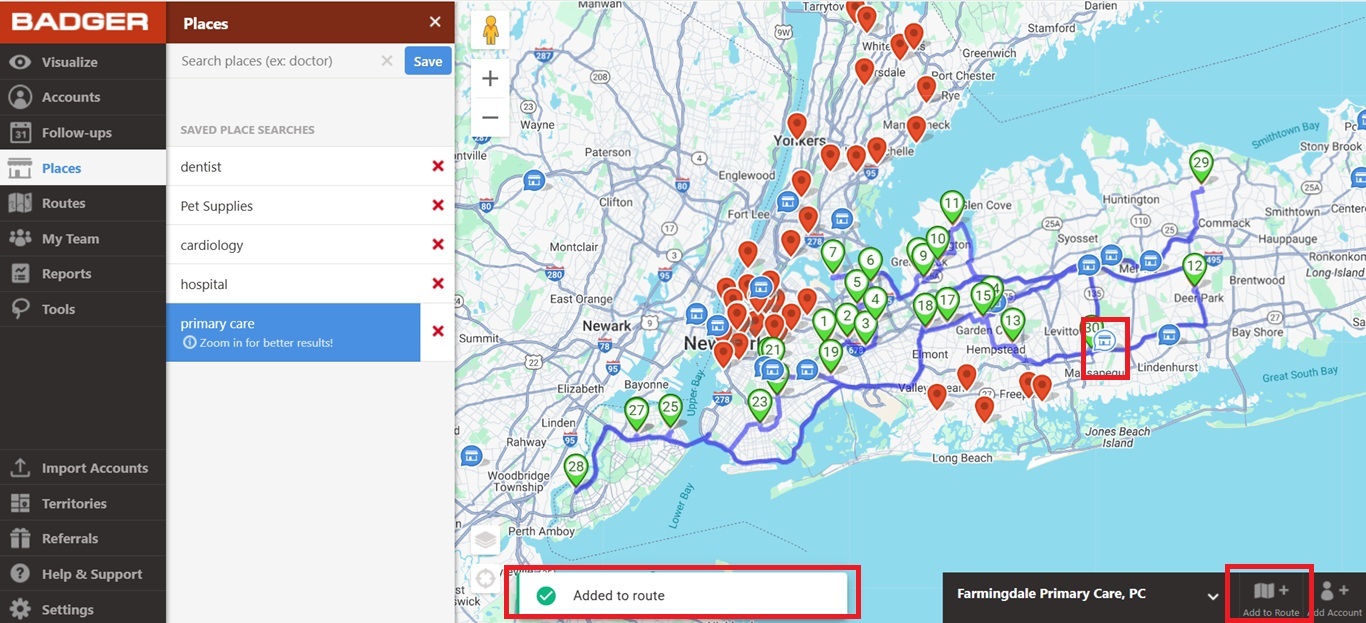
You may also add stops from our Places feature.