How to Sync Your Google Calendar Events on Apple Calendar
There may be times that you want to see your Google Calendar events on your Apple Calendar. Since Badger Maps pushes routes and appointments to an Apple Calendar, you might want to merge your Google and Apple Calendars together. This way, you can see your Badger appointments on your Google Calendar and more! Read along to find out how.
1. Go to Settings, and tap Passwords & Accounts.


2. Then tap Add Account, and choose Google.

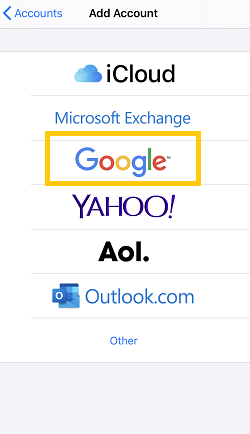
3. Click Continue on the pop-up box that will appear, and log in to your Google account.
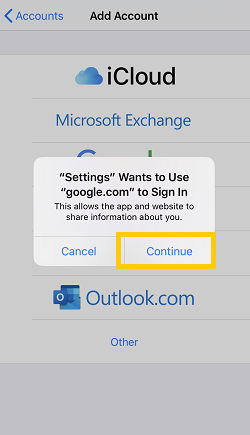
4. Once done, emails, contacts, and calendar events will now sync directly with your Google Account. Turn off the other services that you don't want to sync with your calendar, and click Save.

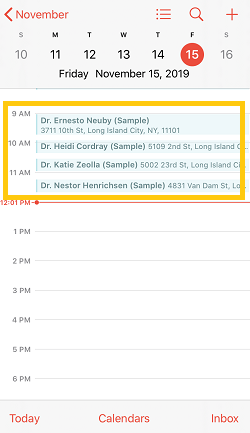
5. Open the Calendar app on your iPhone, and you’ll see that your Google events are now on your iPhone calendar.

Note: There are some Google Calendar features that don’t work on Apple Calendar like:
- Email notifications for events
- Create new Google calendars
- Room Scheduler.


