How to Turn On Map Layers (Web App)
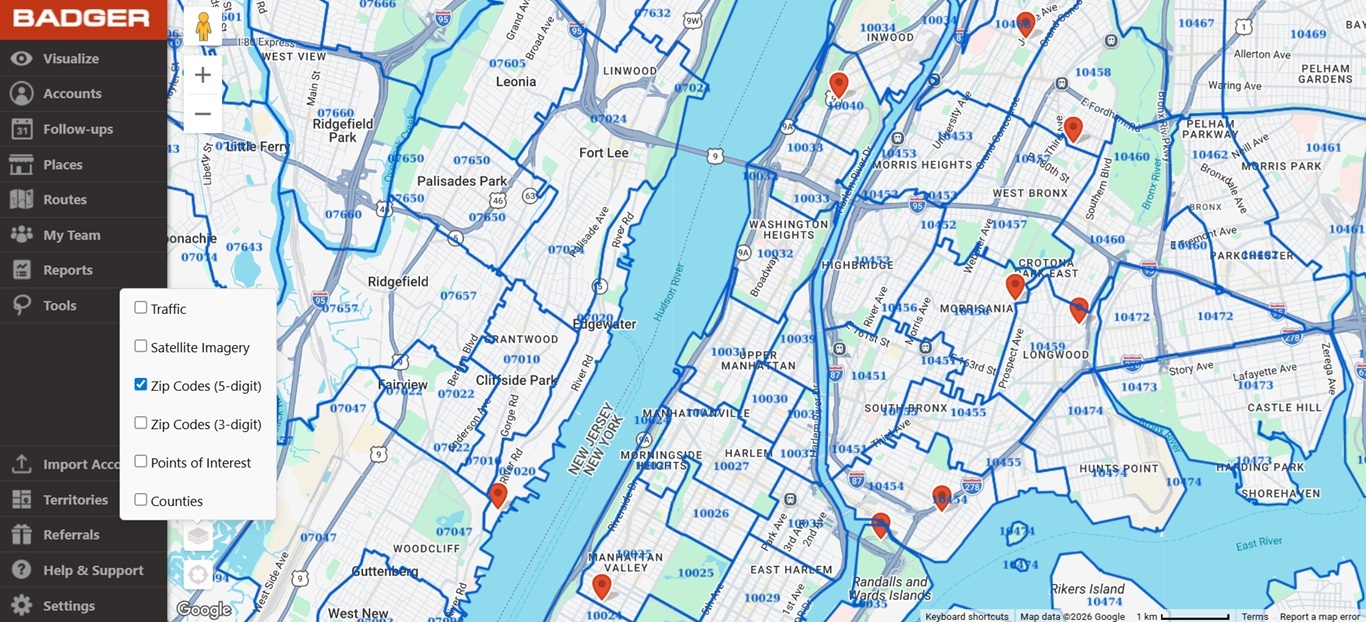
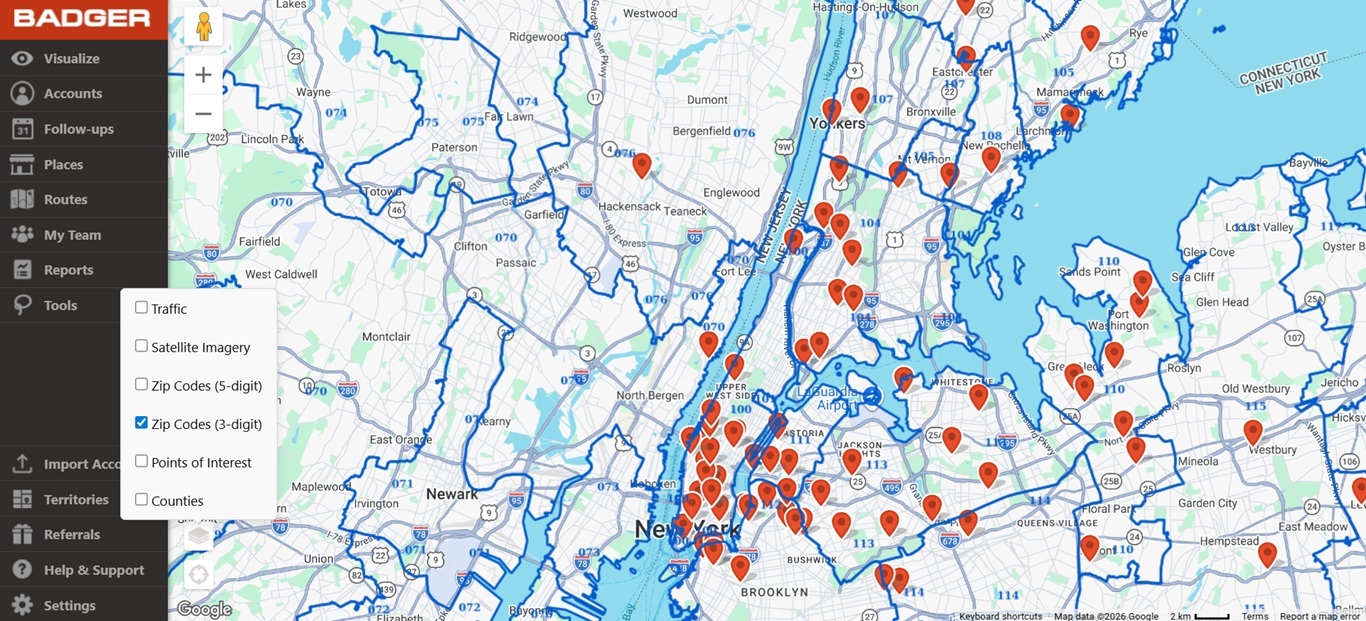
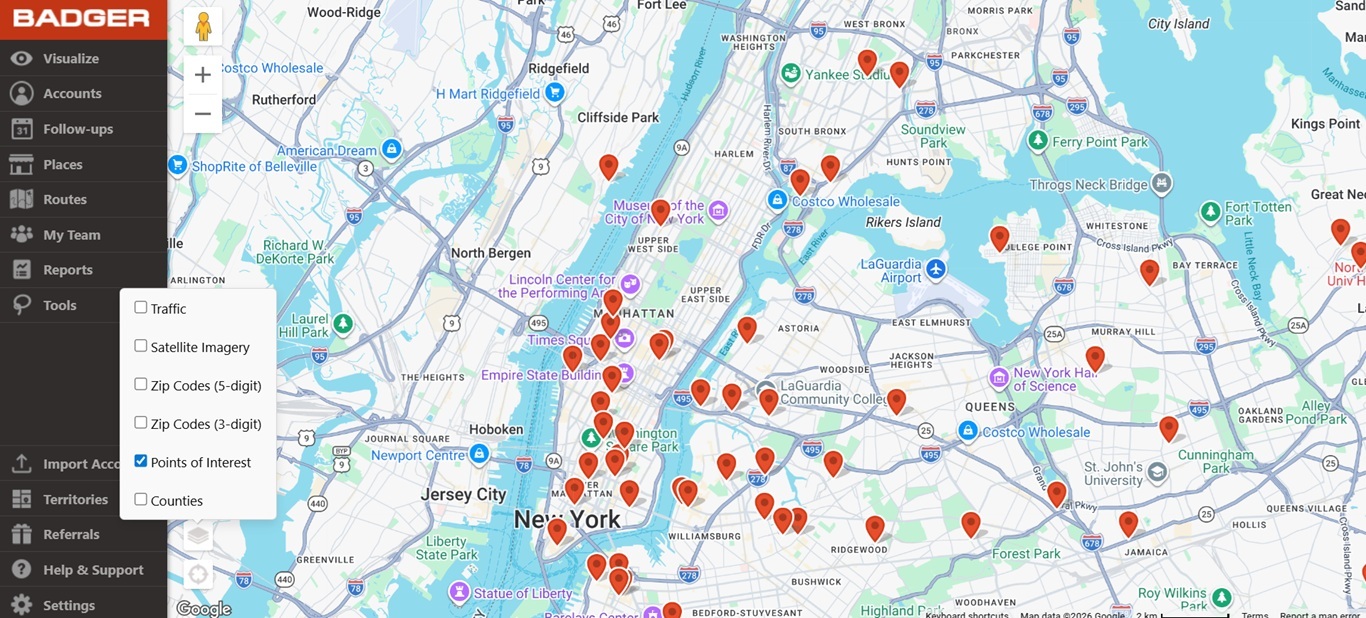
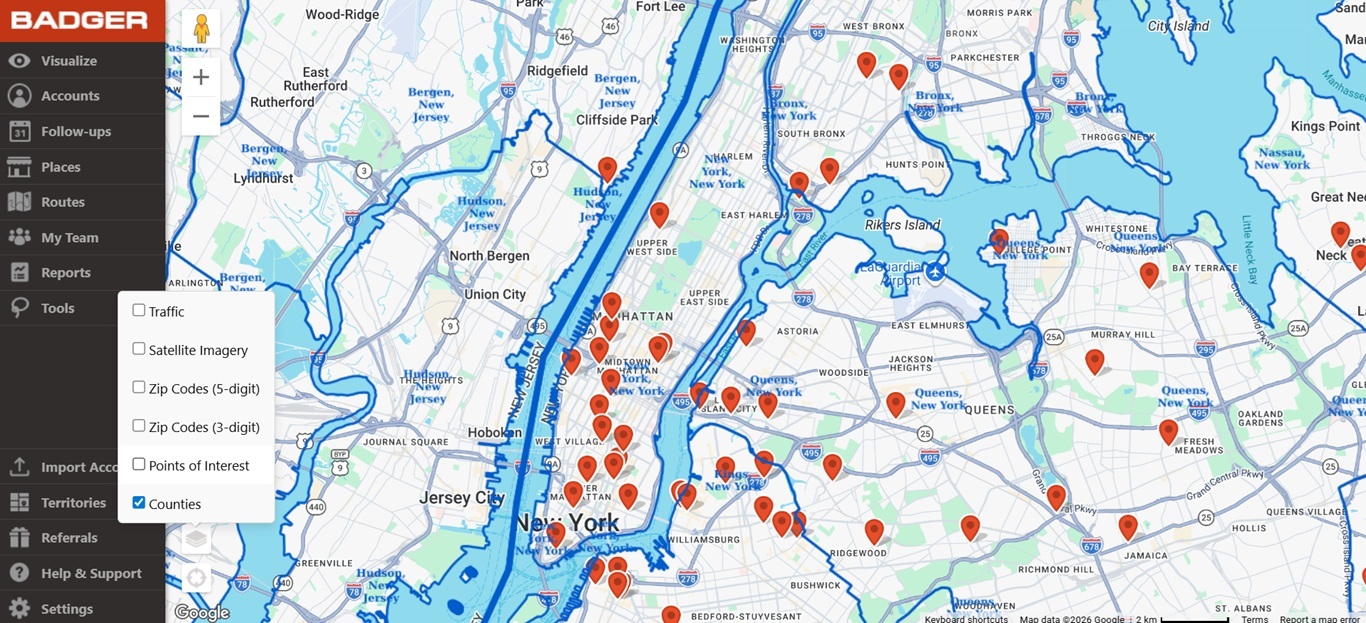
The Map Layers feature provides the ability to show zip codes, traffic and satellite images on your map. This can help you organize your sales territory or create a route more effectively.
To apply a Map Layer, follow these steps.
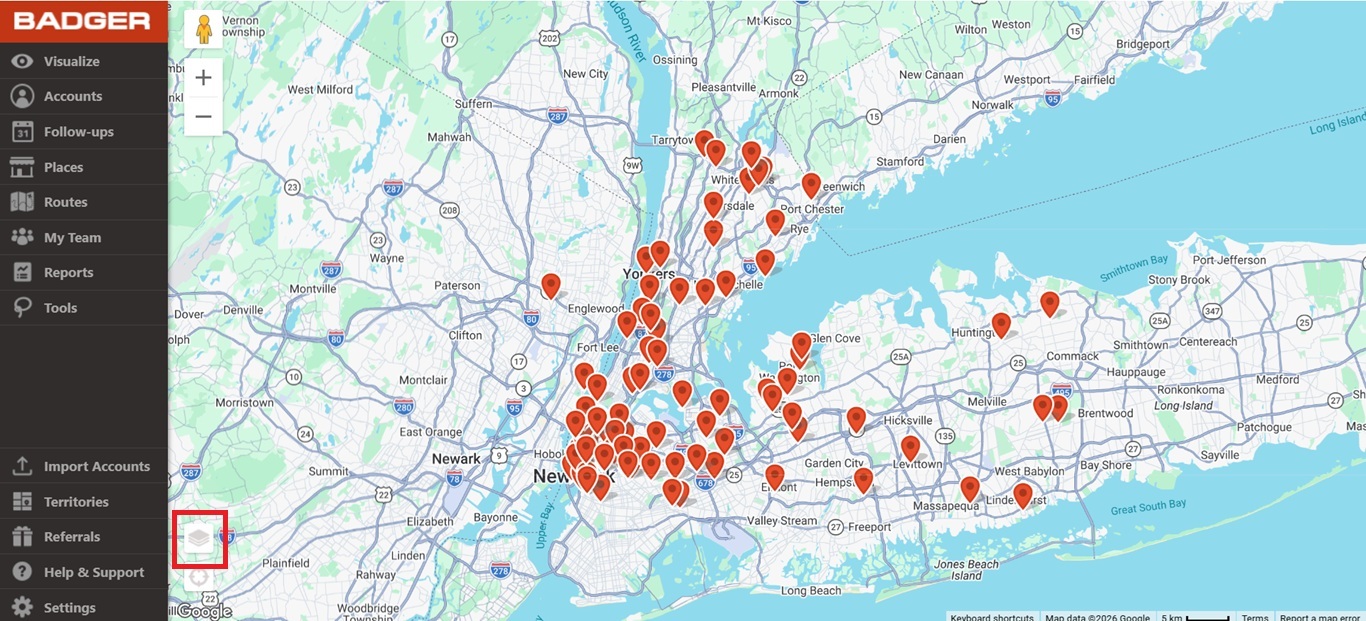
1. On the lower-left-hand side of the page, click the Map Layers button.
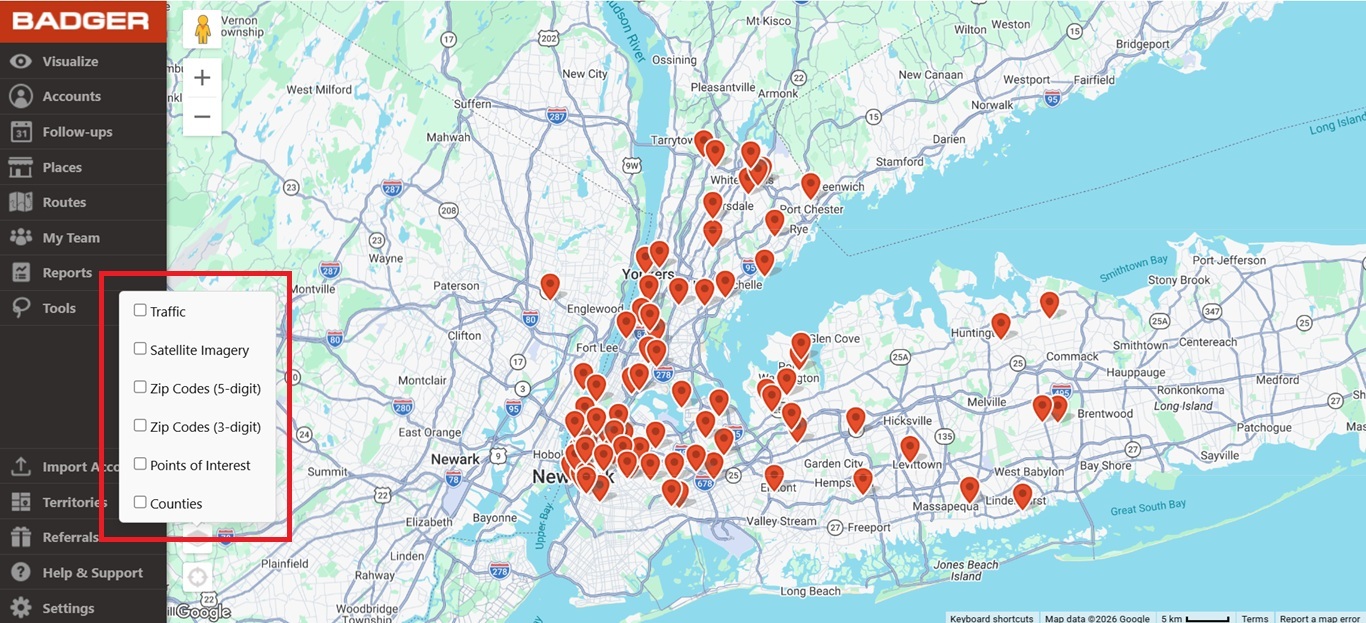
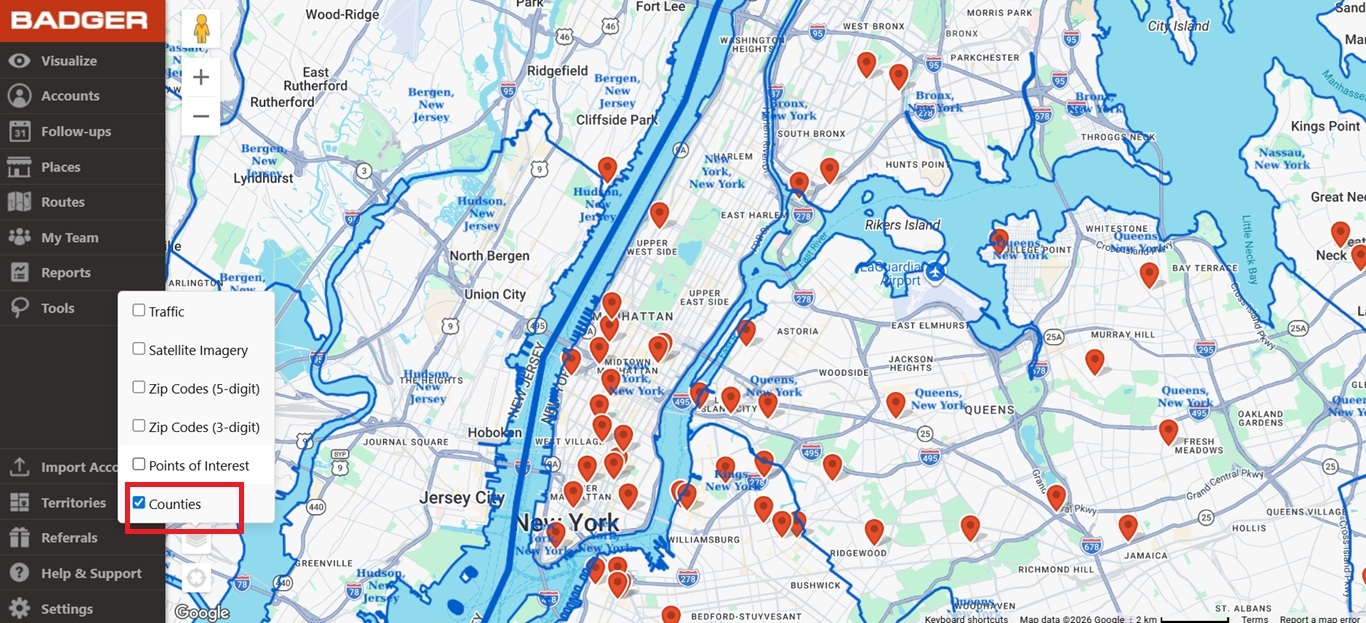
2. Then, select the layer you want to apply to your map. You can pick them individually or combine them.
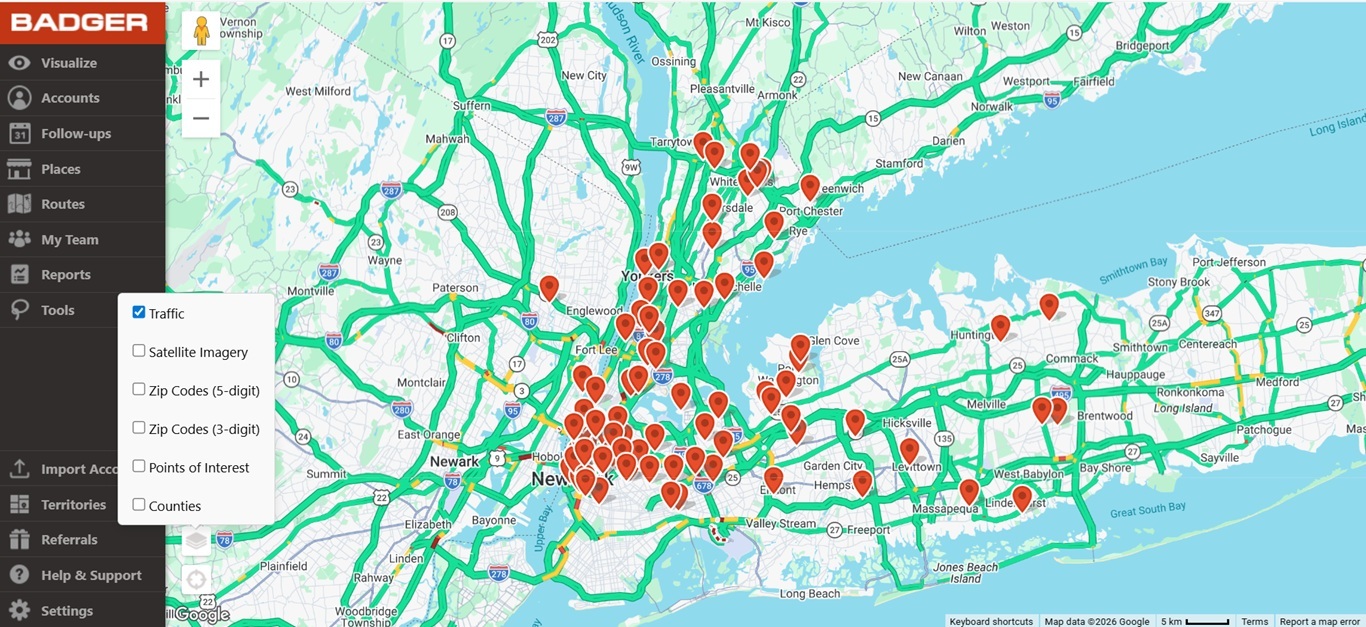
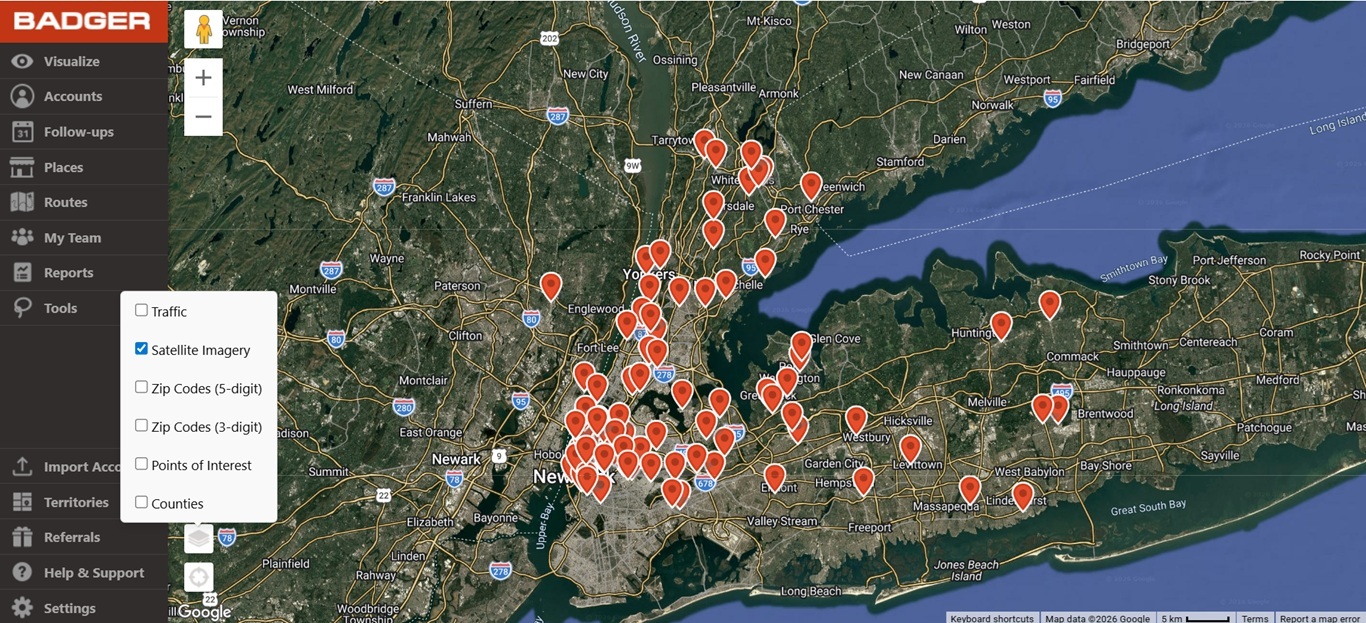
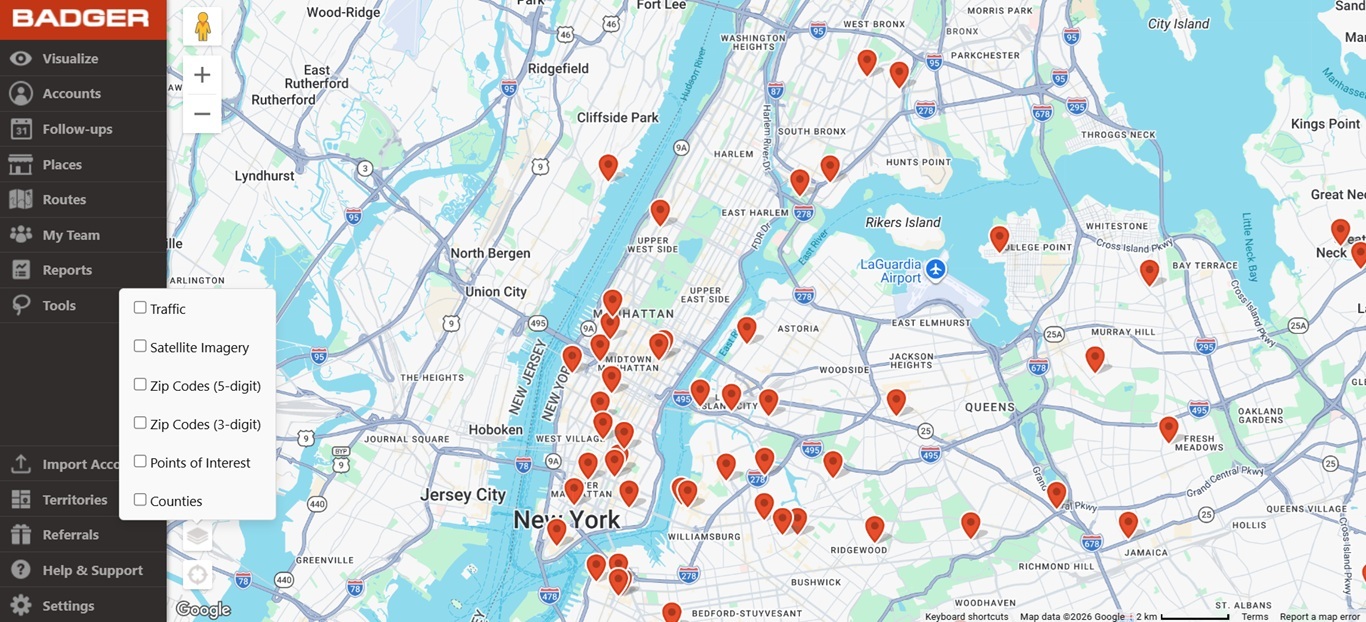
Below are the sample images of how your map would look like when a specific layer is selected.
3. Lastly, simply tick the checked box to turn off the layer.
That's all! You just learned how to use the Map Layers. Go ahead and try it now.


