How to Use the Days Until Follow-up Filter (Web App)
Want to know what accounts are due for follow-up in the next few days? Don’t worry, Badger Maps has a built-in Days Until Follow-up filter that automatically counts how many days you have to make a follow-up with a client. Continue reading to find out how this works on the web app.
To color code your accounts according to Days Until Follow-up you need to:
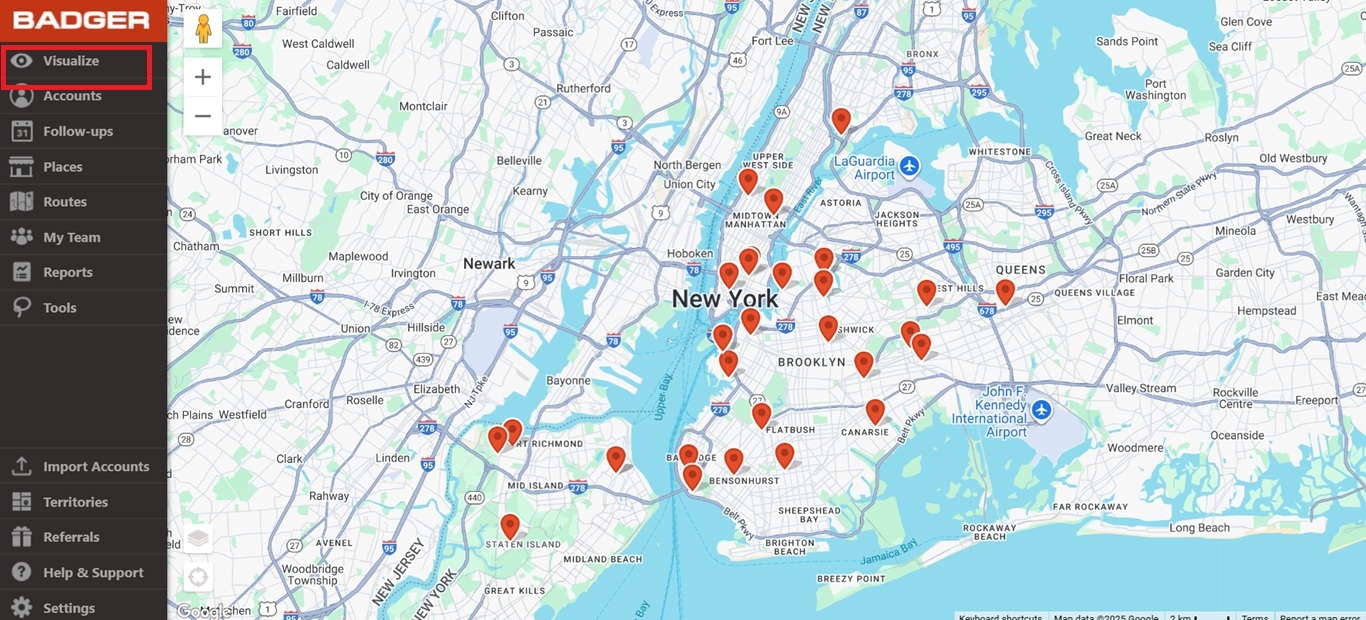
1. Open up the Visualize screen.
2. Then go to Colorize, and click Days Until Follow-up. Note that this field is automatically set as numeric so you’ll see that the pins will be colored based on a gradient scale.
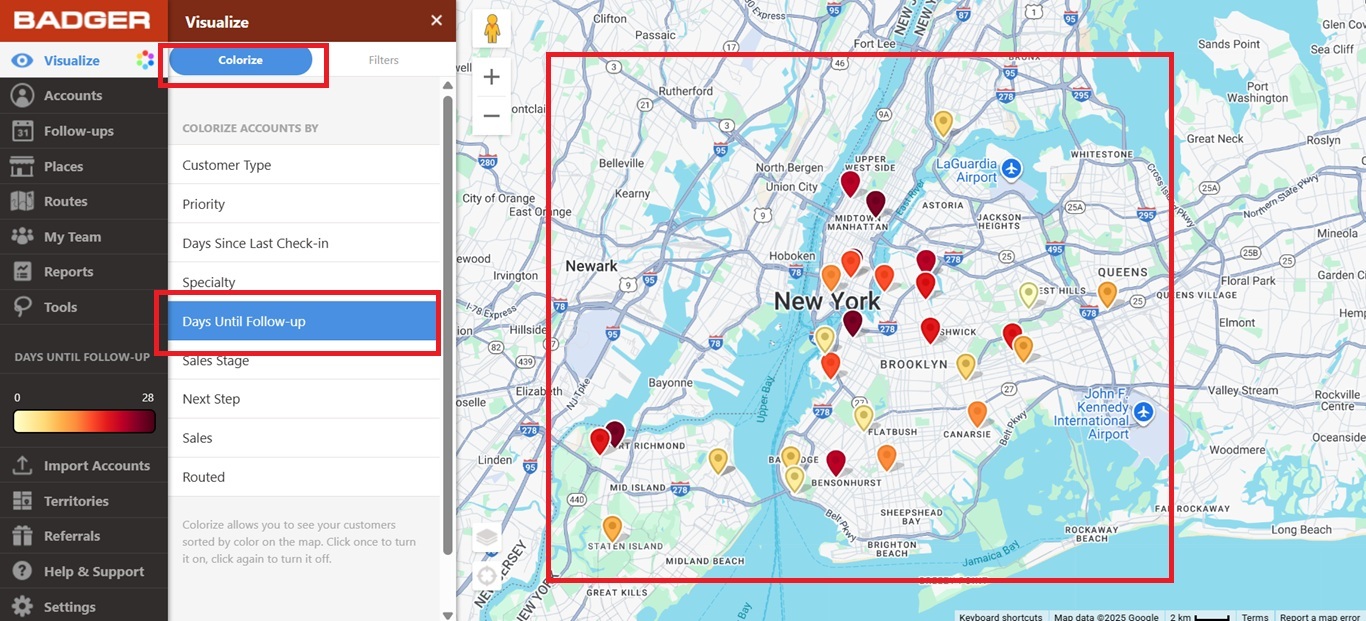
3. Click on Days Until Follow-up again to bring back the pins to their default color.

Let’s say you only want to see the accounts that you need to follow-up in the next 60 days. All you have to do is:
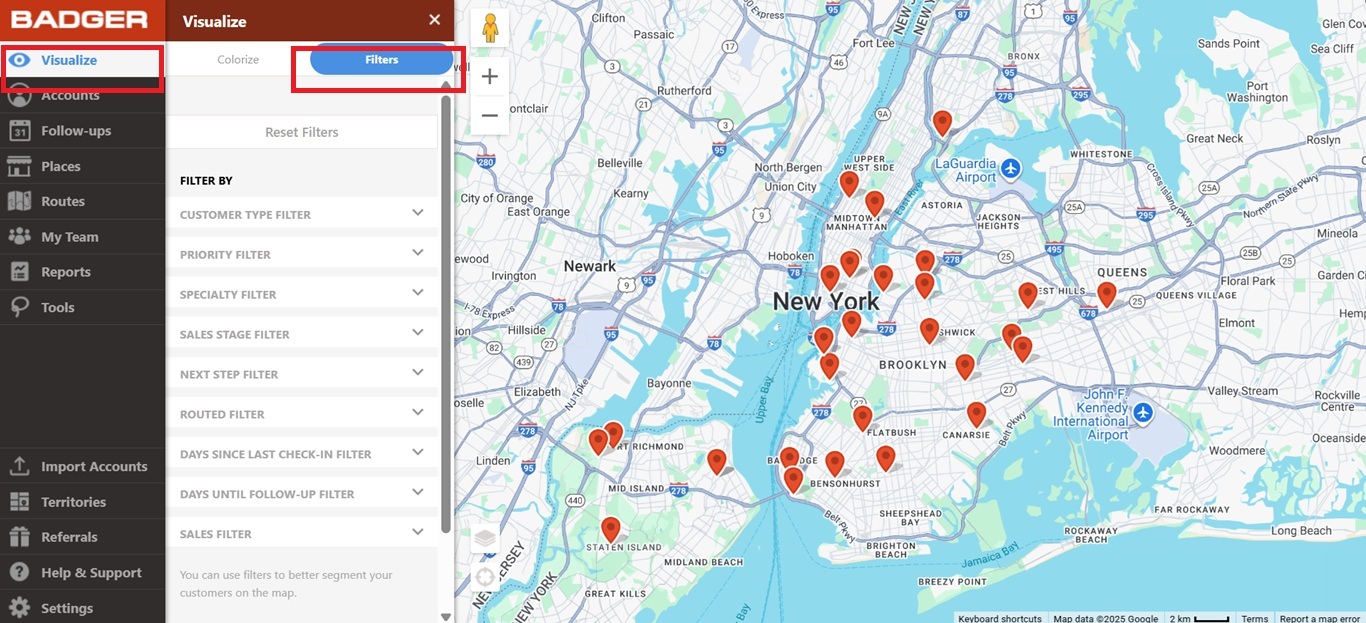
1. Go to Visualize, then click Filters.
2. Look for Days Until Follow-up Filter and click on it. Then use the sliders to choose the values, or type 0 and 60 on the boxes. After that, the map will only show the accounts that are due for follow-up in the next 60 days.
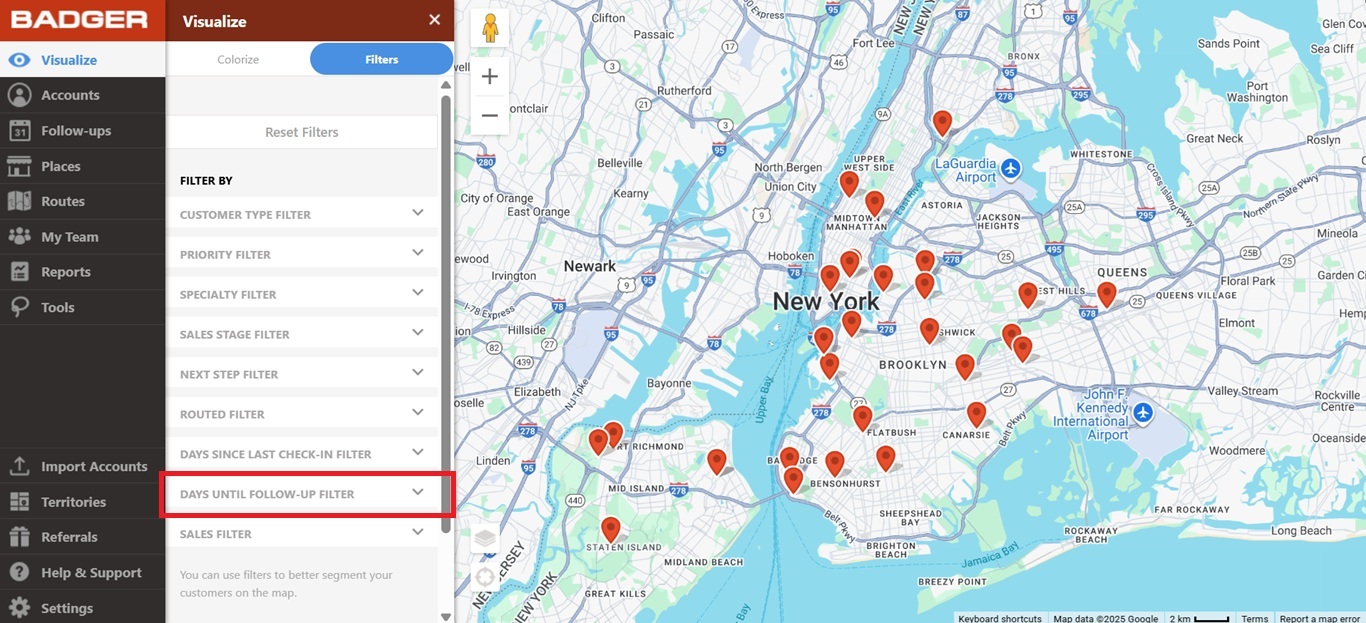
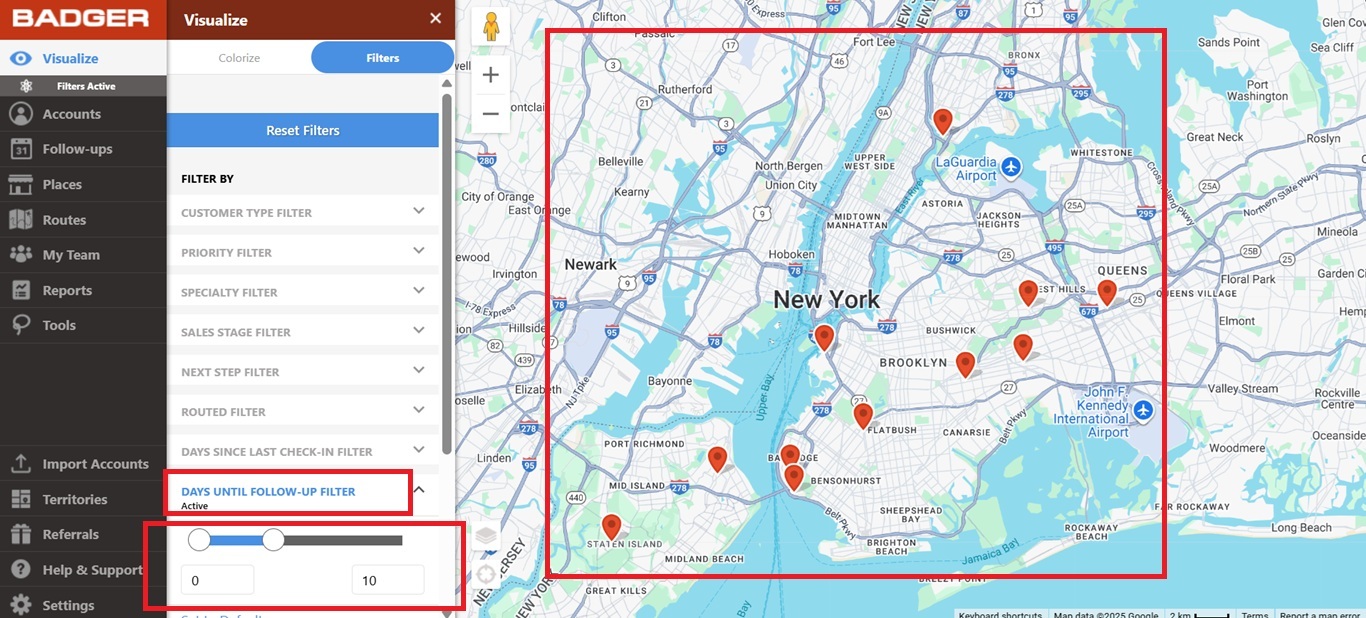
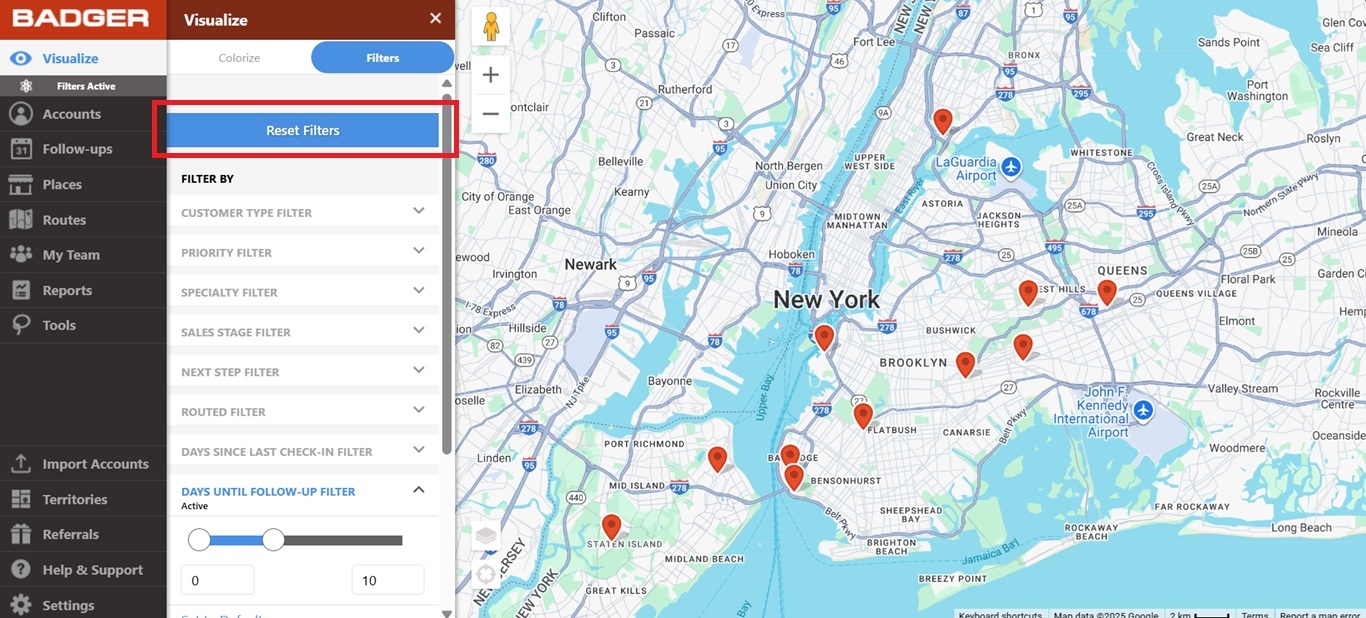
3. Click Reset Filters to bring back the rest of the accounts.
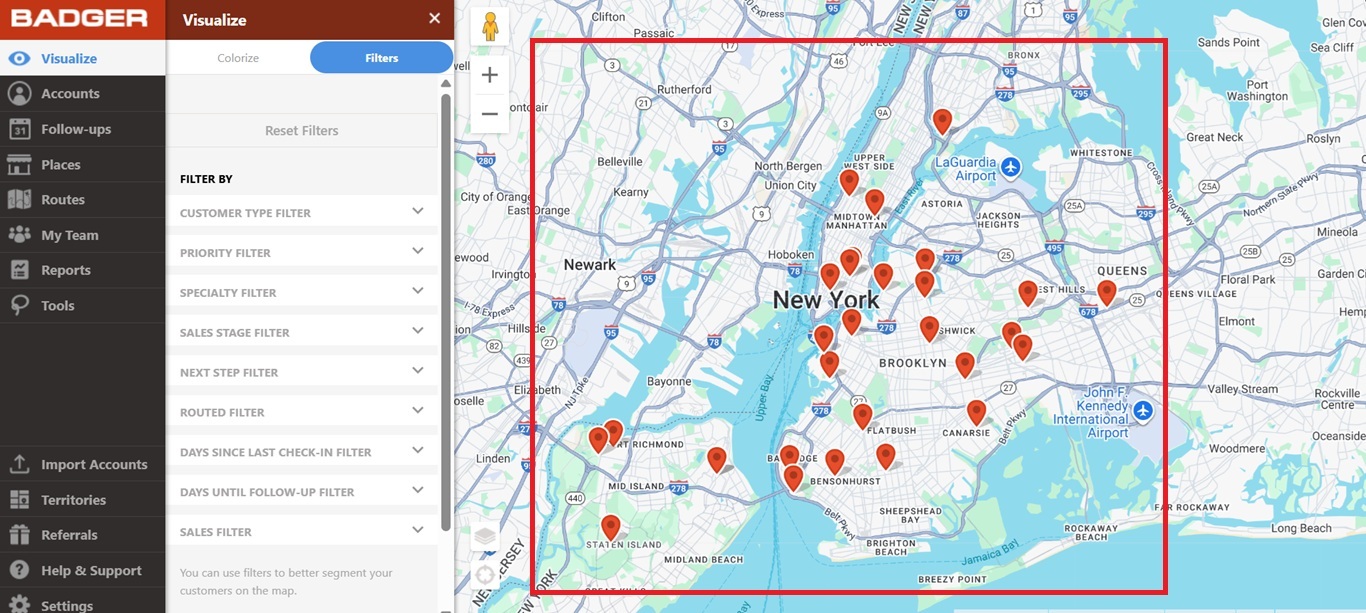
And you’re done! Try this out now. Have a great day.


