How to Use the List View Feature (iPhone)
As you know, the Accounts tab shows a list of all the accounts that you saved in Badger. What if you just want a list of the accounts visible on your map? Good thing the Badger Maps iPhone app has a List View that lists down the accounts that are currently shown on your map. Continue reading to find out how it’s used.
1. Go to the main screen, and tap the List button found on top. Once done, the app will show you a list of the accounts that are currently visible on your map.
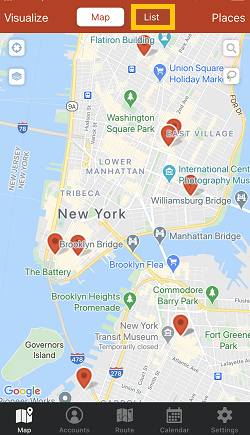

NOTE: The accounts listed on the List View were sorted according to distance.
2. If you want to see more on the list, tap Map, then zoom out, and go back to List.

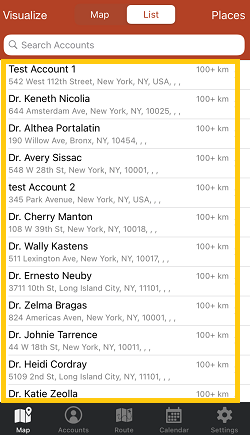
NOTE: The app can list up to 100 visible accounts. It'll show a "You have too many customers on your map! Zoom in a bit so we can show a list." message when the visible pins exceed the limit.

3. To zoom in and narrow down your list, go back to Map, zoom in, and tap List again.
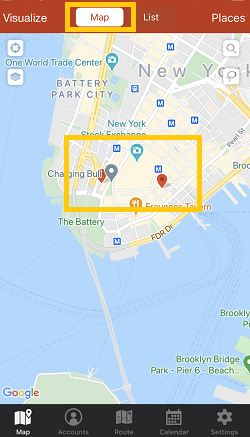

That’s all! You just learned how to use the List View on the iPhone app. From this list, you can tap on any account and edit their details, add them to your route, calendar, enter a check-in, or navigate.
Have a nice day!


