How to Use the Search Accounts Function (Android)
Tired of scrolling through your Accounts list when searching for an account? Don’t fret, Badger Maps has the Search Accounts function that lets you look for accounts using a specific keyword associated with the account you’re searching for. Go ahead and read below to know how it works on the Android app.
1. Tap Accounts, then type in the keyword related to the account you’re looking for on the Search Accounts field, and the app will give you a list of accounts with that word in their names.


2. Part of the account’s address information is also searchable.

3. Or, the account’s phone number. Just make sure to key it in using the same format as how it’s saved in Badger.

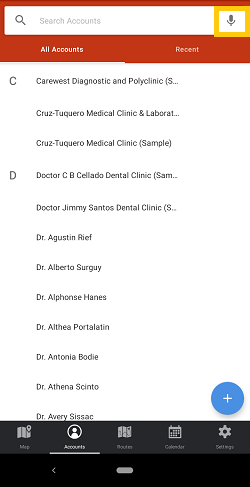
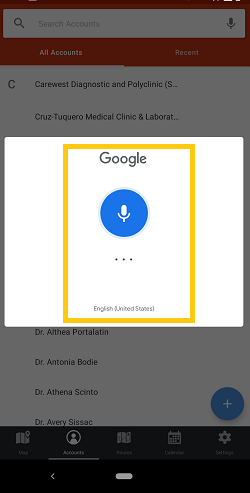
Note: You also have the option to use the Android app’s Speech to Text feature to type in the keywords especially when you’re driving. It’s the mic icon beside the Search Accounts bar especially. Check out the sample below.

Pretty cool, right? Try this function now. Happy selling!


