How to Use the Search Accounts Function (iPhone)
Going through your Account List is very time consuming. You usually had to scroll back and forth because you missed the account that you’re looking for.
Luckily, Badger Maps has the Search Accounts function that allows you to look for accounts using keywords related to the account you’re searching for. Read below to find out how it works on the iPhone app.
1. Go to Accounts, type in the keyword associated with the account that you’re looking for on the Search Accounts bar, and the app will show you a list of accounts with that word in their names.

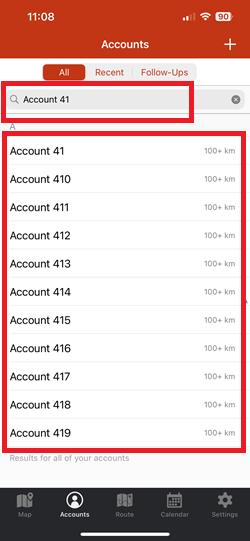
2. Another way is to search using a part of the account’s address information.

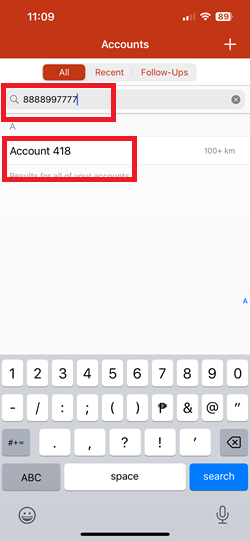
3. Lastly, you can also look up using the account’s phone number. Just be sure to type it in like the way it was saved in Badger.
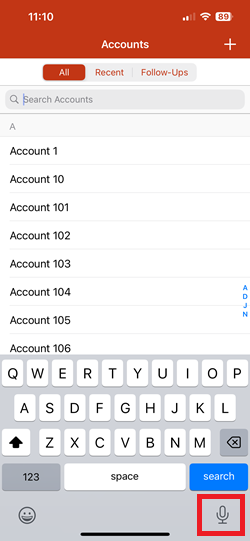
Note: You can also use your iPhone’s Dictate Text feature (the mic icon on your keypad) to key-in the info on the Search Accounts field if you're driving. See the sample below.
That’s it! Quite easy right? Go ahead and try it. Have a lovely day.


