How to Leave a Note Attached to an Account (iPhone)
Badger Maps makes it easy to add, edit, and save notes to existing accounts from the convenience of your iPhone. Here’s a quick guide that’ll teach you how to do it.
1. Go to Accounts, and choose which account you want to add a note by tapping on it. To look for an account, you can either scroll down the list, or Badger’s Search Accounts function.


2. After that, the Account Details page will be opened up, and tap on Notes to start.
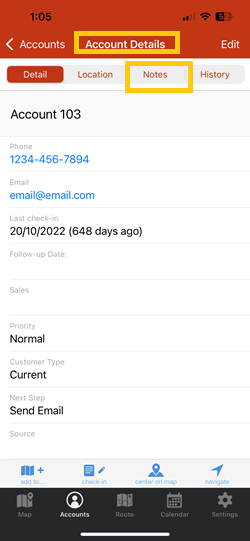
3. Write down your notes on the Enter Notes field, and tap on Save when you’re done. Once saved, you’ll see a timestamp on top of the note.


Isn’t that quick? Go ahead and try this now. Have a great day ahead!
Check out this video to learn more on how you can manage your accounts using the Badger iPhone app:


