Misspelled or Duplicate Values (How to Edit Filters)
Adding filters is simple, but what if you’ve accidentally misspelled or duplicated a value? Not to worry, just follow the steps below, and you’ll learn how to easily update them.
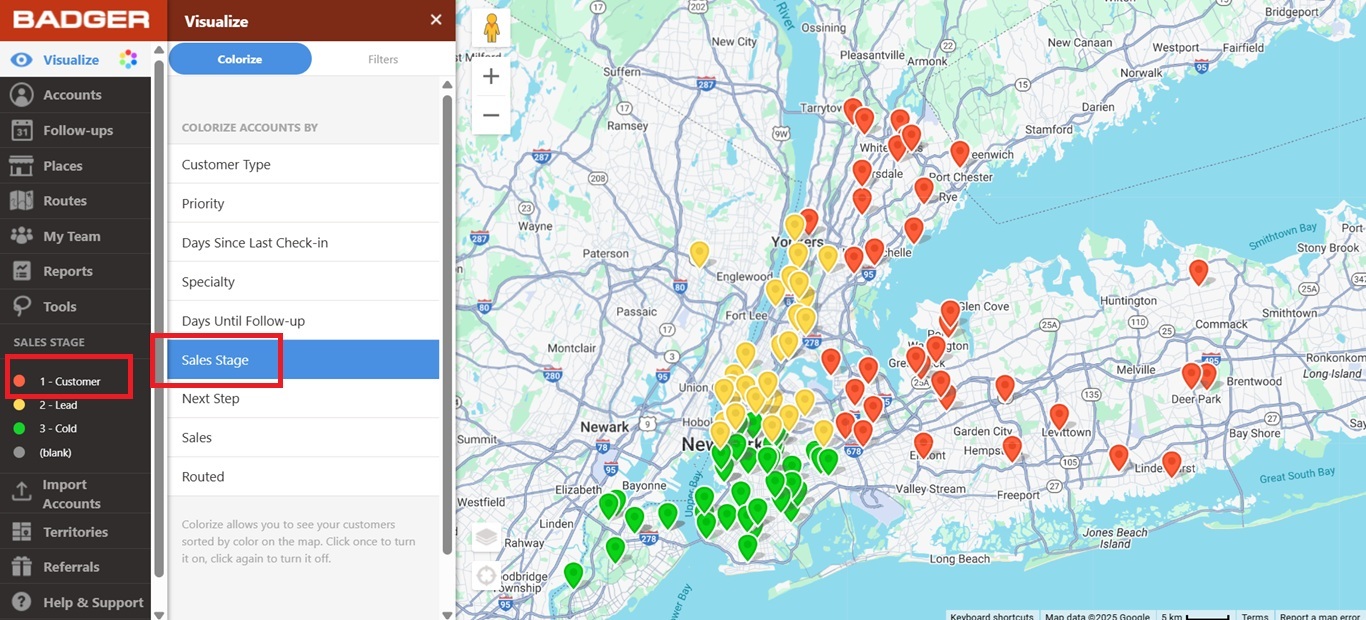
Let’s say that in this case you have duplicate values under the Sales Stage filter ( “1-Customer” and “1 - Customer”) due to missing spaces, and you want to merge them under 1 - Customer.

1. To do this, you need to filter your accounts first to only show the accounts with the value 1-Customer on the map. Check out the complete steps here.
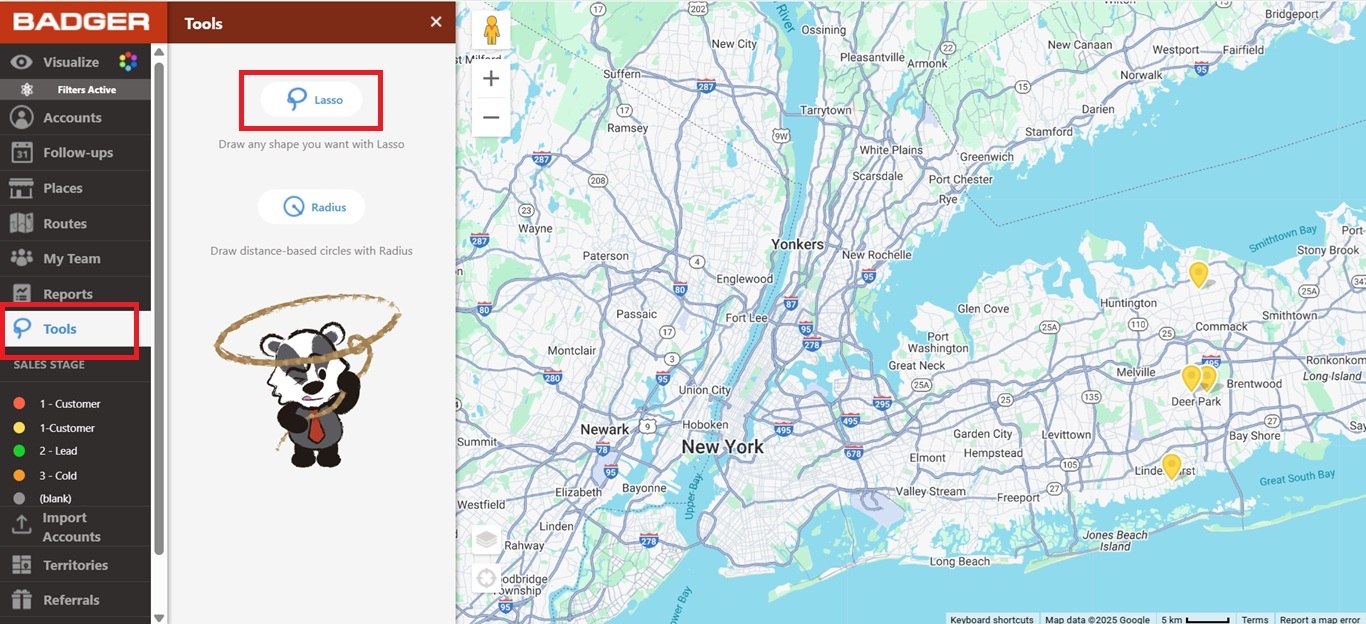
2. Once done, here’s how your map should look like. All pins must have the same color.

3. Then, go to Tools, choose Lasso, and circle all your filtered accounts.
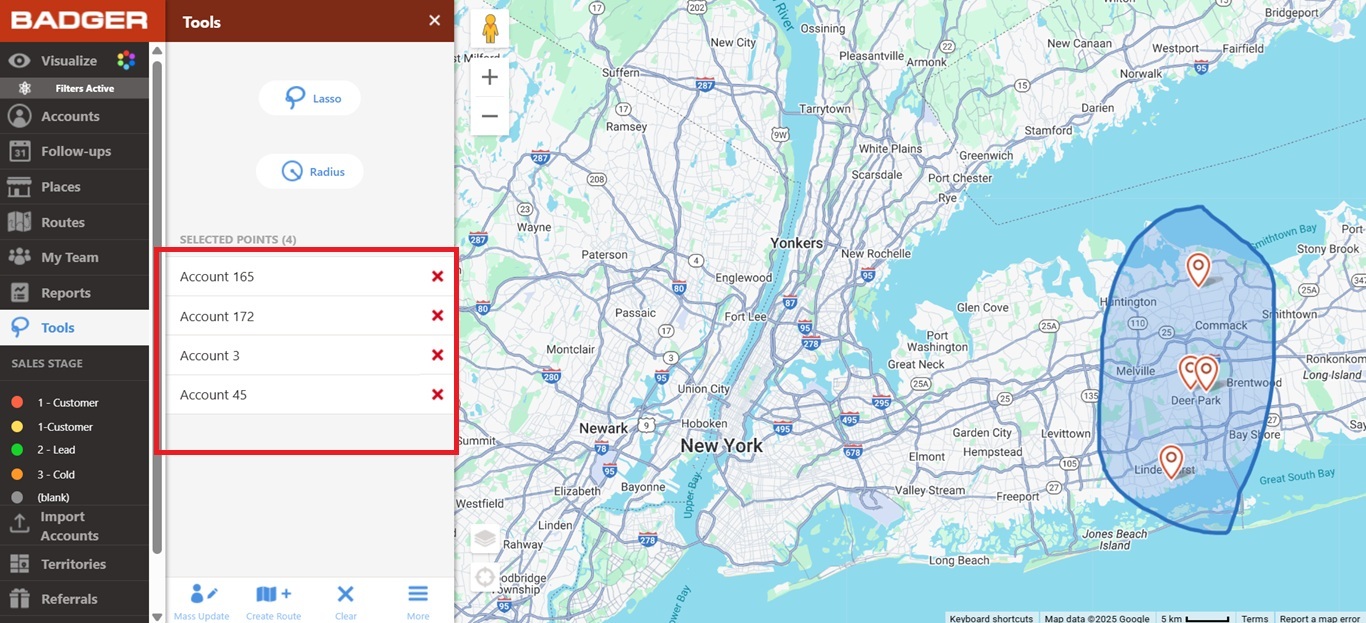
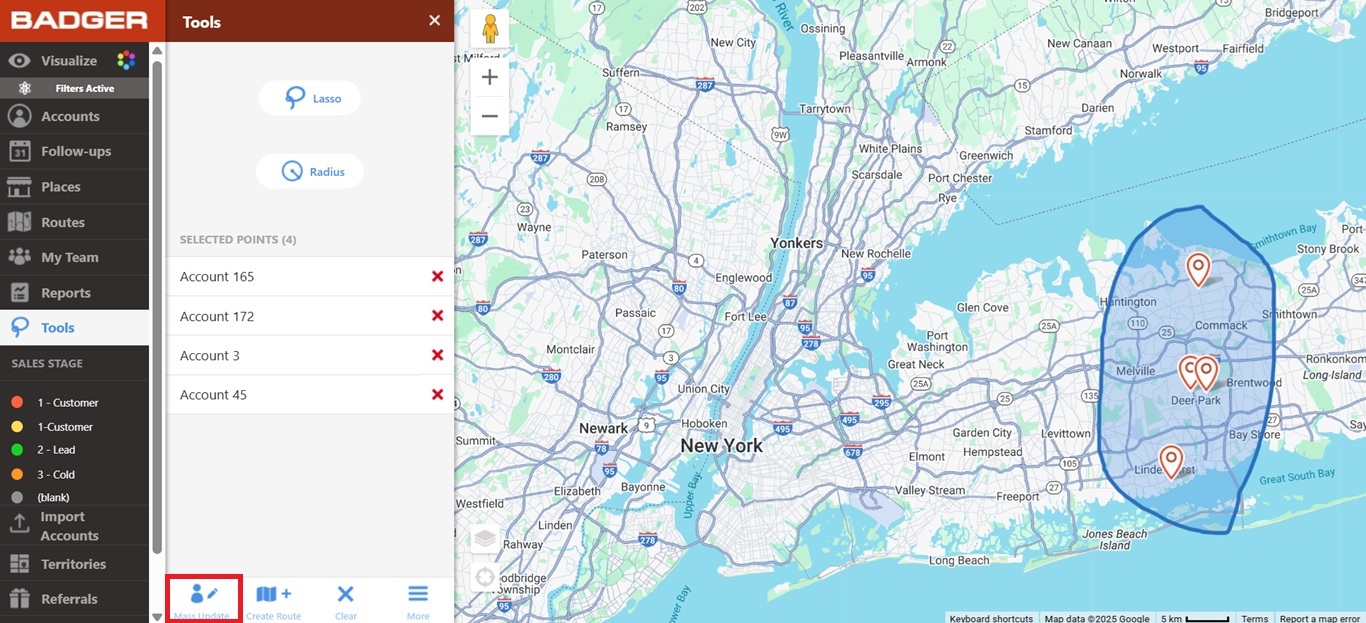
4. Click on the Mass Update button.
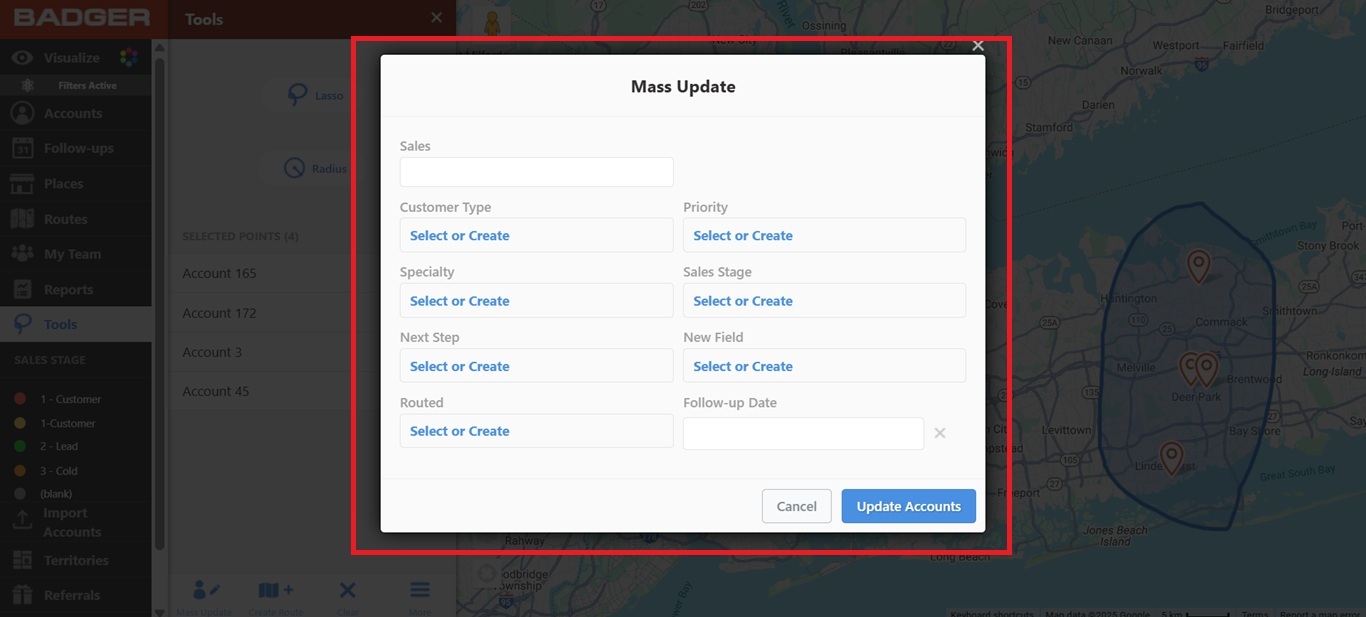
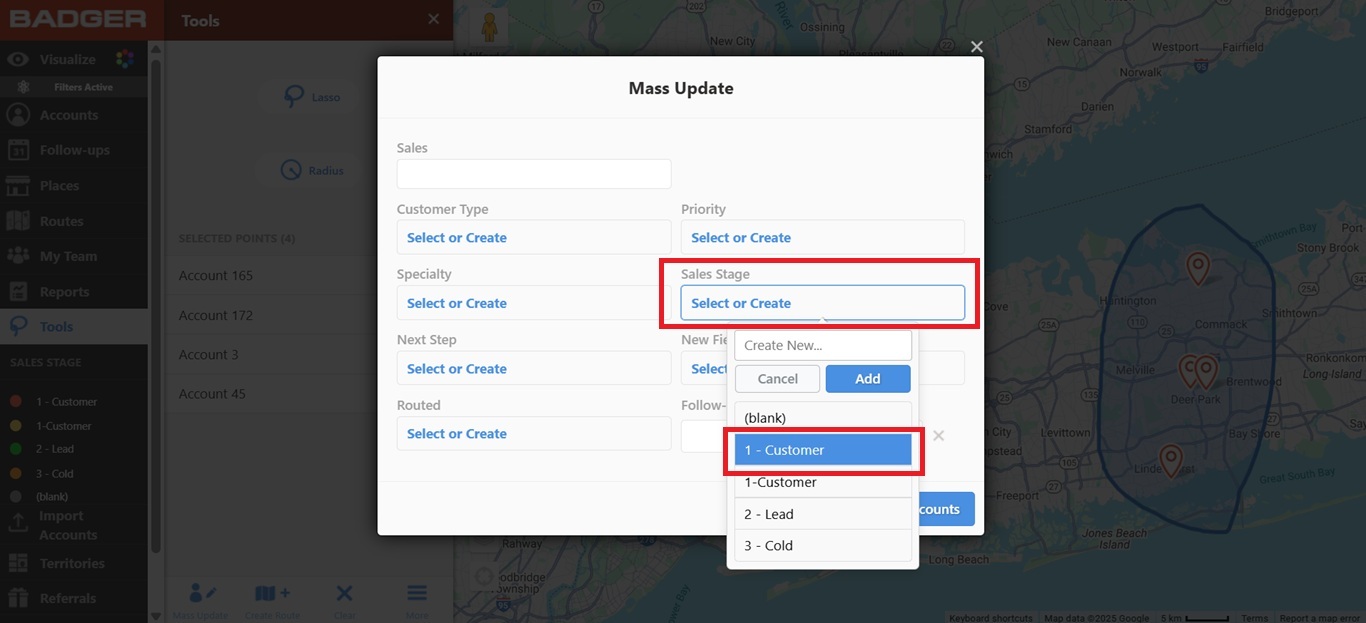
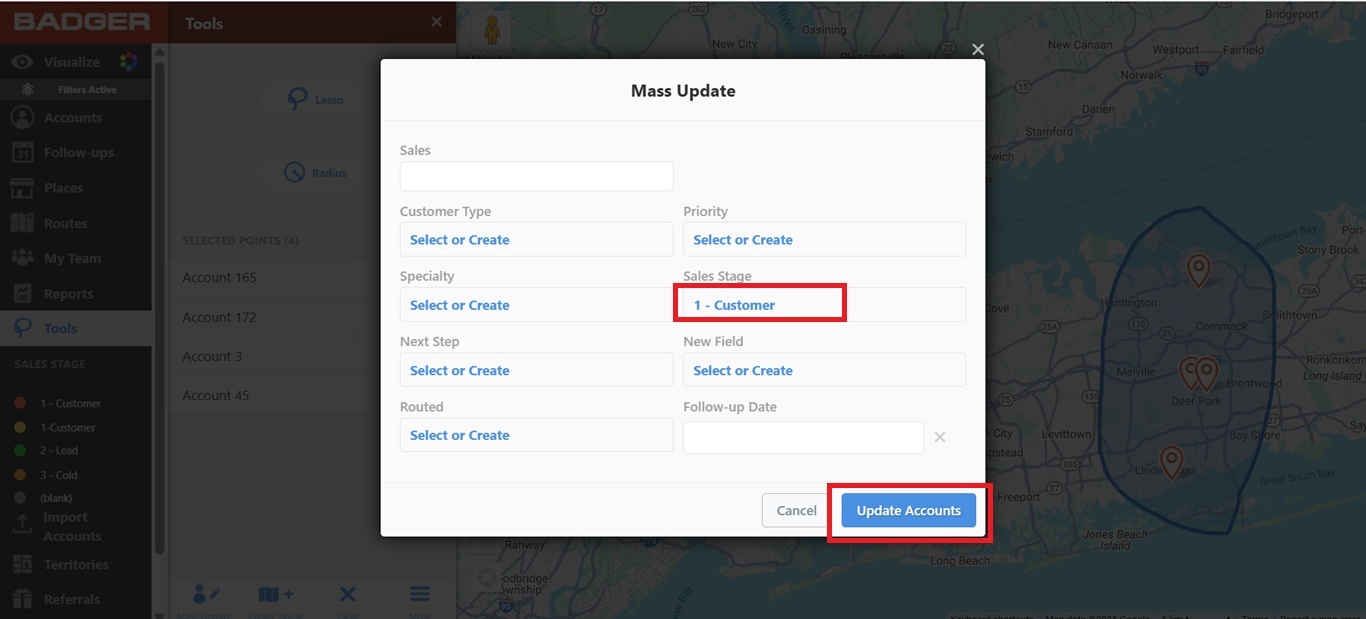
5. The Mass Update box will then pop-up. Under the Sales Stage field, click on Select or Create then choose '1 - Customer' from the drop-down list, and hit the Update Accounts button.
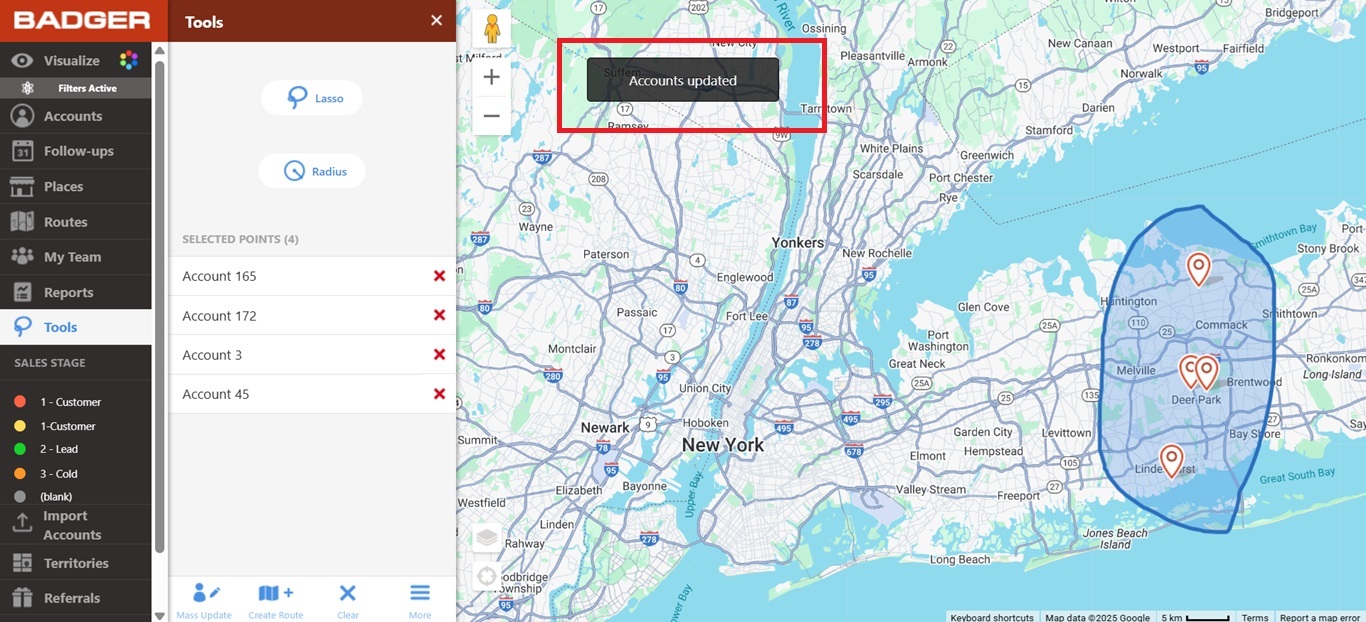
6. You will then get notified that your accounts have been updated.
7. Now, refresh your browser to view the changes. Then, go back to the Visualize tab, choose Colorize, click on Sales Stage, and you’ll see that 1-Customer has been removed from your options.