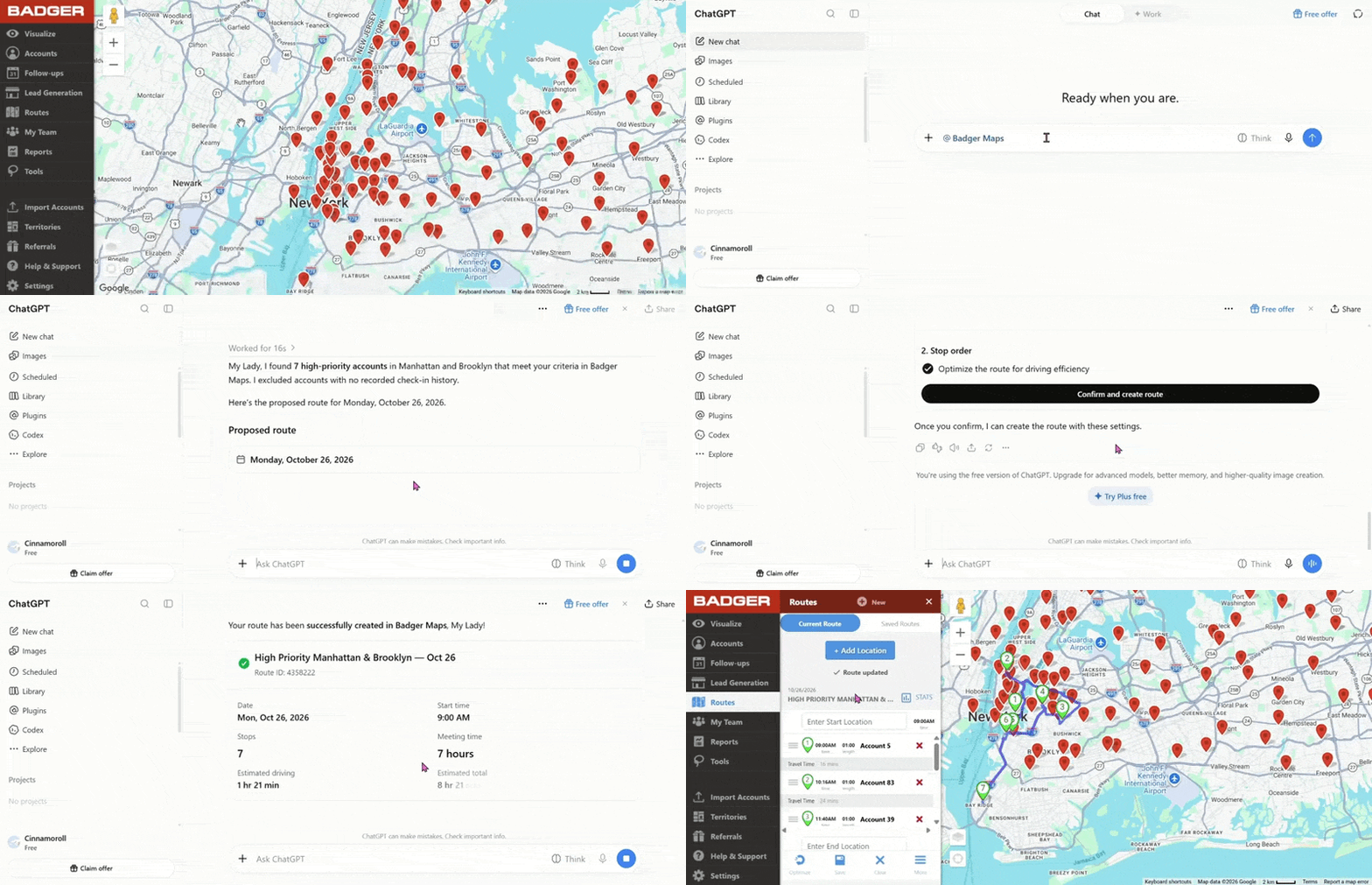
How to Connect Badger Maps with ChatGPT
In addition to Claude, Badger Maps can also connect with ChatGPT for AI assistance. The setup is easy, and here's how it works:
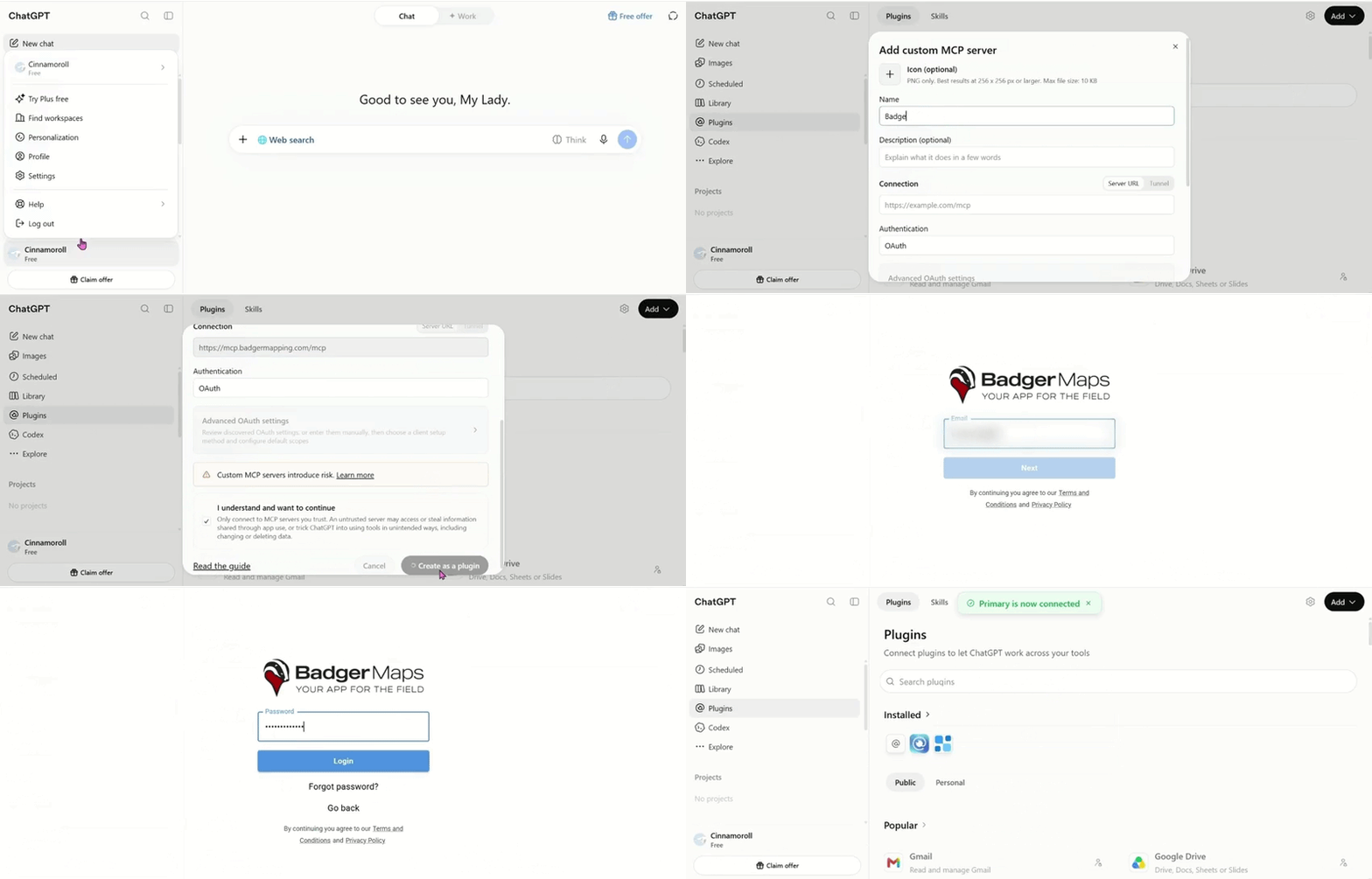
1. First, click your Profile icon, go to Settings, and click Plugins.
2. Click Browse Directory, then Add, and select Add custom MCP server.
3. In the Name field, enter Badger Maps. In the Connection field, enter https://mcp.badgermapping.com/mcp. Then check the I understand and want to continue box, then click Create as plugin.
4. Click Connect Badger Maps and log in using your Badger Maps account credentials. After that, you’ll be taken back to ChatGPT, and a Primary is now connected message will pop up confirming that the connection is successful.
Note: If you have both Badger Maps Standard and Advanced, you’ll be asked to choose which account should be connected before entering your password. Since this guide is for Badger Maps Standard, we chose Standard.
That’s it! Your Badger Maps account should now be connected to ChatGPT and ready to use. Here’s an example:
Sample Prompt:
Create a route in Badger for my high priority accounts with more than $20,000 YTD sales in the Manhattan and Brooklyn area. Set the meeting duration for each stop to 1 hour and schedule the route for next Monday, October 26. Do not include the ones that I haven't checked in yet.